
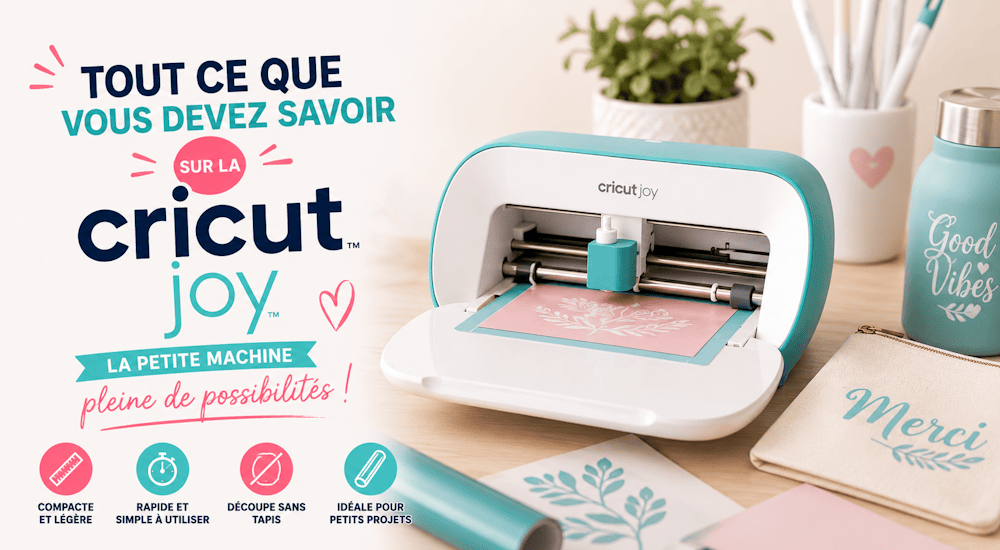
You don't have to be a die-hard crafter to love the Cricut Joy cutting machine. Have you heard of this adorable little crafting tool? It's a compact electronic machine that's ready to cut and bring all your big creative ideas to life. 🤩
In today's article, we'll cover everything you need to know about the Cricut Joy so you can decide whether this little gem is right for you (or not 🤷)!
What Is the Cricut Joy?
video generated by bonega.ai
The Cricut Joy is a small cutting machine that lets you cut and draw on a variety of thin materials, including adhesive vinyl, cardstock, heat transfer vinyl, and more. Thanks to its small size and ease of use, you can bring it into any room in your home and craft with no hassle at all. 👍
What's Included with the Cricut Joy
Inside the box, you'll find:
- The Cricut Joy cutting machine with the fine-point blade and blade housing.
- A power cord
- A 0.4 mm black pen.
The blade and housing come already installed inside the Cricut Joy.
The Cricut Joy software also gives you free projects, so you can easily do some practice projects. ✅
Key Features of the Cricut Joy
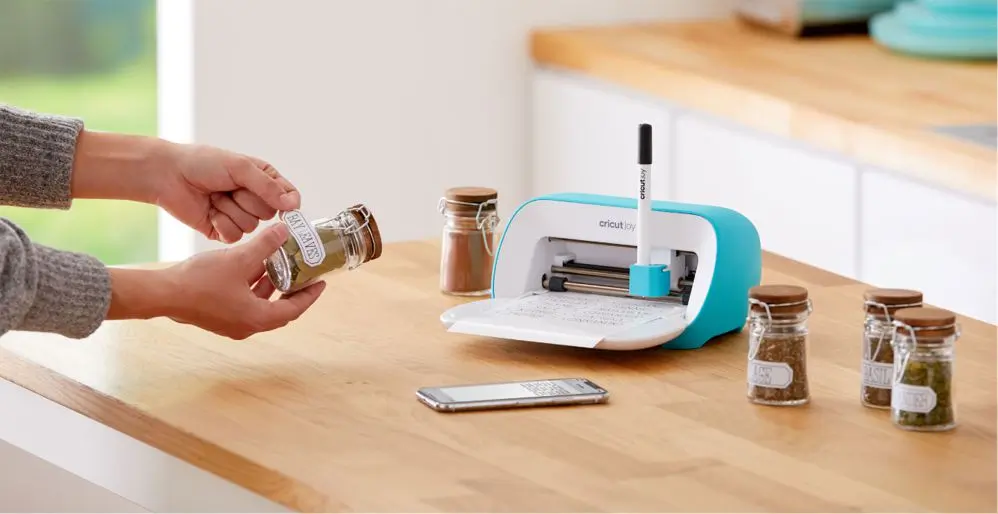
The Cricut Joy is the smallest member of the Cricut cutting machine family. But don't let its size fool you: this little cutting machine can do a lot!
Compact and Portable
As we mentioned above, the Joy is Cricut's smallest cutting machine! It fits in a cubby or on a countertop. That means it's easy to put away and quick to set up, which is really handy if you often move from room to room to cut your designs.
Since you don't have to carry a mat around, and the machine itself is so small, the whole setup is lightweight. You don't need a dedicated room to make your creations.
No Cutting Mat Needed!
The Cricut Joy cutting machine works with a full range of materials that don't require a mat, which means fewer purchases, fewer steps, and faster results. 😀
Cuts Up to 6 Meters Long!
The Cricut Joy can cut single designs up to 1.5 m long and repeated designs up to 6 m long! With the Cricut Joy, you can finish projects in under 15 minutes, which is a real treat for quick crafting. ✨
Which Materials Can I Cut with the Cricut Joy?
- Heat transfer vinyl
- Cardstock
- Adhesive vinyl
- Paper
- Infusible Ink sheets
- Cardboard
- Poster board
- Heavyweight paper
- Glitter paper
- Pearl paper
And much more! 😊
Projects to Make with the Cricut Joy Cutting Machine:
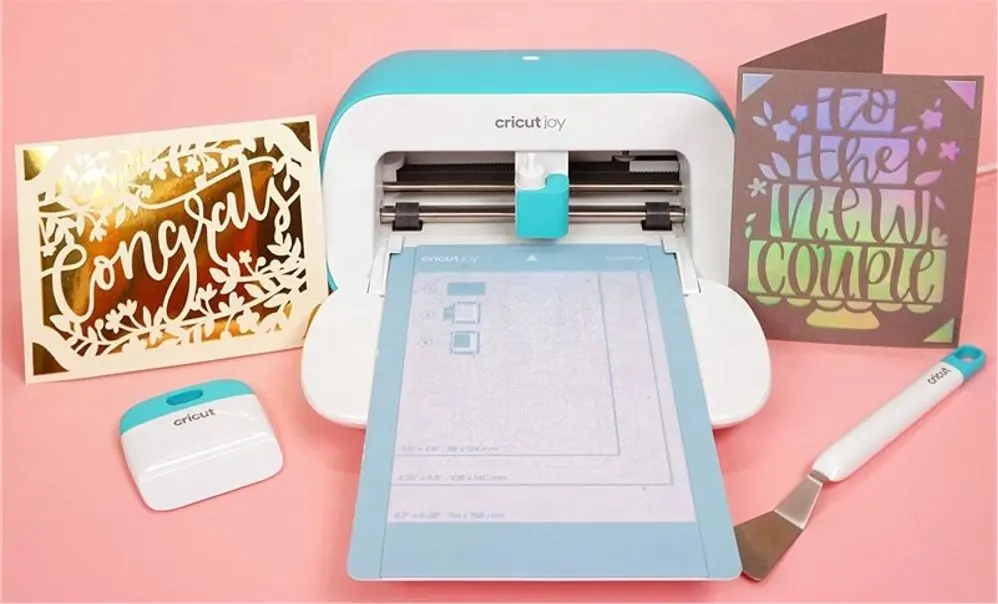
With the Cricut Joy, you can make all kinds of projects:
- Cards with cut-out or drawn designs
- Invitations for parties or weddings
- Place cards for dinners or weddings
- Labels for jars, drawers, or lunch boxes.
- Adhesive vinyl logos for walls, mugs, water bottles, and any other decor you can dream up!
- Heat transfer vinyl logos for clothing and fabric
- Party decorations and banners
How Much Does the Cricut Joy Cost? 💸
The Cricut Joy sells for 190 euros, which is a great price for a cutting machine. The Cricut Maker, Cricut's best-known cutting machine, sells for around 290 euros.
Do I Need the Cricut Joy If I Already Own a Cutting Machine?
No. If you already have a Cricut Explore Air or Maker, the Cricut Joy cutting machine won't add any new features to your projects.
If you're already an experienced Cricut user with one or more Cricut machines in your workshop, you don't need the Cricut Joy.
That said, it could be worth adding the Joy to your collection (when you already have a cutting machine) if you're looking for a machine that's easy to take with you or to keep in a second location.
Who Is the Cricut Joy For?
The Cricut Joy cutting machine definitely has its limits, but it also has its advantages... mainly the fact that it's portable! This machine is great for people on the go, small craft spaces without much room (like in a camper van), teachers who want to do quick projects in the classroom, card makers, people who take part in craft fairs...
Basically, it's for anyone who's short on space, needs a portable machine, or has a specific project in mind. 🙄
If you're a card maker, this little machine is the perfect companion for your craft room.
Or maybe you're not a crafter at all... but staying organized is close to your heart ❤️. This little machine would be perfect in an office (or a kitchen!) for making custom labels whenever you need them.
Pros and Cons of the Cricut Joy
If you've read this article, you may already know the pros and cons of this machine.
Let's start with the pros:
✔️ Fast cutting on many types of materials
✔️ Cuts up to 6 meters long
✔️ Easy to take into any room in your home or on a trip.
✔️ Easy to learn compared to older machines.
Now for the cons:
❌ It doesn't have a USB port (in case you don't have a Bluetooth device).
❌ Limited project width: only 12 cm wide
❌ It can't cut materials that are too thick and hard, like wood. For that, you'll need to move up to a Cricut Maker
How Do You Use the Cricut Joy?
The Cricut Joy cutting machine works with the Cricut Design Space software, so be sure to install it before you start your projects 😉
For this example, let's assume we're using adhesive vinyl as our cutting material.
Start by opening a new project in Cricut Design Space on your phone or computer. If you want to add text, click the "Text" tool in the left sidebar to open a text box.
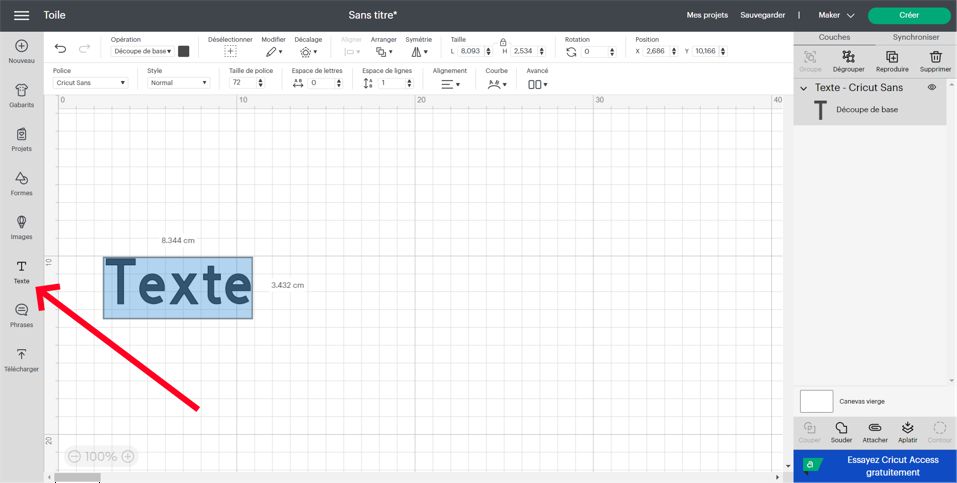
Type the text you want. While the text is still selected, you can change the font.
You can also upload a design you made yourself by clicking "Upload" in the sidebar. Resize your project by changing the font size or dragging the corners of the design.
When everything looks perfect, click "Make It"! 👈
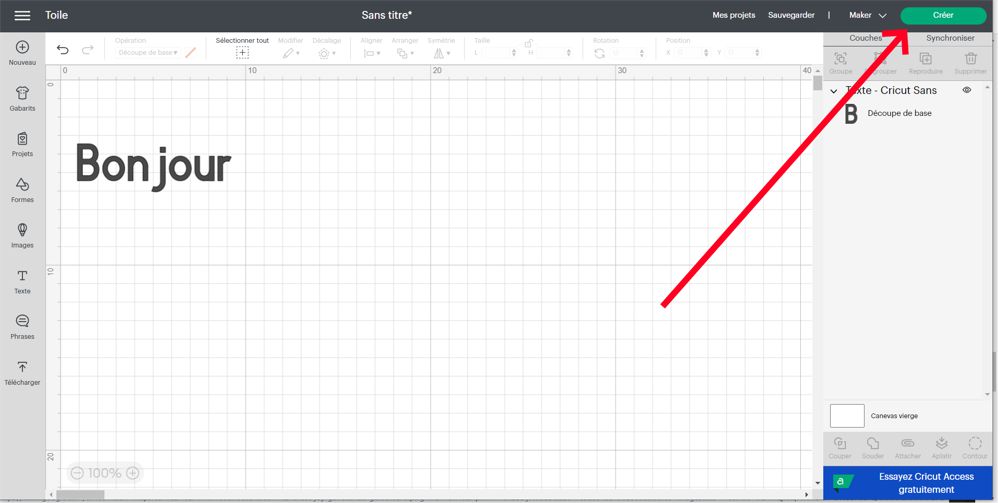
To load your vinyl into the machine, you don't need a cutting mat! Just slide it under the clamps on each side of the tray when the screen prompts you.
The machine will detect it and start pulling it into place.
Now that you've created your design and loaded the vinyl, here's how to finish cutting and applying your project:
1️⃣ - Once the vinyl is loaded, Design Space will activate the Go button in the bottom right corner of the screen. Press it and let the Cricut Joy work its magic! When the cut is finished, the machine unloads the material by itself, so you don't have to do a thing.
2️⃣ - Use scissors to trim around your design on the vinyl sheet. Then remove the excess vinyl, starting at a corner and peeling it back to reveal your design.
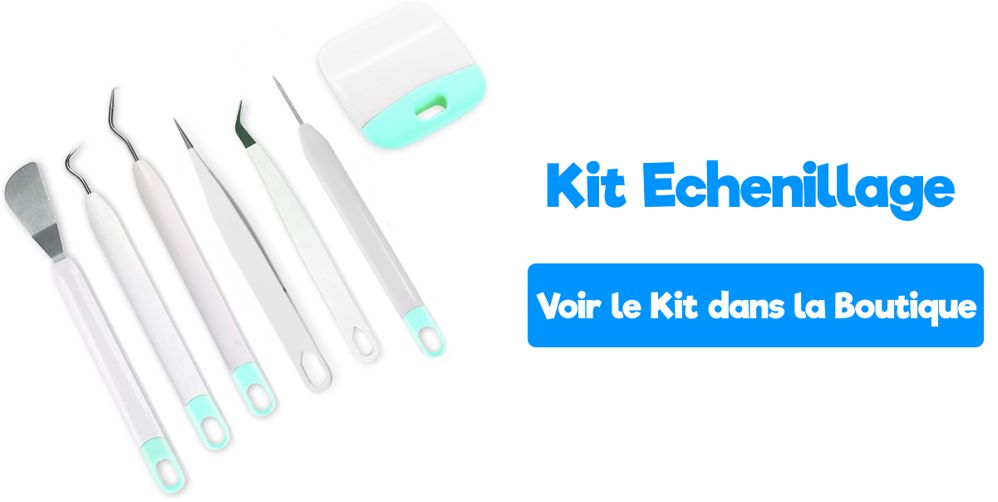
3️⃣ - You can use our weeding kit to remove any leftover vinyl. The insides of letters can be tricky to weed if you don't have a hook or tweezers made for the job.
4️⃣ - Cut a piece of transfer tape slightly larger than your design. You'll use it to apply your label to your container in one piece.
5️⃣ - Peel the backing off the transfer tape, keeping the clear, sticky grid. Place the transfer tape over your design and rub it down to make sure the letters or design stick to the tape.
6️⃣ - Lift the transfer tape up. It should pick up your design and leave the white backing behind.
7️⃣ - Press your new sticker onto the surface of your choice, rubbing over the design, then peel away the transfer tape so only the design is left.
And there you have it!
We hope this tutorial helped you figure out whether or not you need a Cricut Joy!
Our company specializes in heat transfer vinyl. This material is popular with people who own a cutting machine (a Cricut Joy or any other)
- Heat transfer vinyl lets you transfer designs onto fabric items (T-shirts, sweatshirts, pillows...)
- Adhesive vinyl, which we don't sell, lets you apply designs to hard surfaces (furniture, desks, windows...)
Order our heat transfer vinyl today from the Transfer Paper online shop! ⤵️
13 comments
Hi, can you make labels to sew onto crochet creations?
Hello I was given a Cricut Joy (second-hand) and I don't have the user manual, I don't know which software I need to download to get it working :-( would you be kind enough to tell me the steps to follow? Thank you very much 🙂
To use the Cricut Joy, the software you need is Cricut Design Space. It's the official Cricut app, available on Windows, Mac, iPhone/iPad and Android.
Hello, I own a Cricut Joy and I've been told that I can cut felt that isn't too thick: is that right? (The Joy can cut thin faux leather) Thank you for your answer Regards
Hello, I don't think the Cricut Joy is suitable for cutting felt. To be 100% sure, I recommend contacting official Cricut support directly, who will be able to confirm the materials compatible with your model.🙂
Hello, to transfer onto mugs, do you need heat transfer vinyl? Do you have to buy the heating device, or does the vinyl hold up well over time? Thanks
Hello, for transferring onto mugs you shouldn't use heat transfer vinyl but adhesive vinyl. Our vinyls withstand around 40 dishwasher cycles once properly transferred.
Hello, Can I use cardstock for the insert card mat? Thanks in advance
Hello, if I use adhesive vinyl on a painted surface, as stencils, is it difficult to peel the vinyl off afterwards without the risk of pulling the paint off the surface? Thanks in advance
Thank you very much for your advice
You're welcome 😉
Hello and thank you for your advice, looking forward to more information
Thank you for your advice.
Leave a comment