
When you get the idea to put your logo or design on a T-shirt with heat transfer vinyl, it usually means a long process of designing and cutting before you can finally apply it to the fabric.
In this article, we'll explore how to vectorize a logo (for free), an essential step for getting the best possible result on your T-shirt. 👕
But before we get started, let's answer a simple question:
What Is Vectorization?
Vectorization transforms your image so it no longer has any pixels.
If you don't vectorize your logo before cutting your HTV, the edges may not come out smooth, because the cut will reproduce the logo's pixels.
What's more, if you cut a design that isn't vectorized, your cutting blade could get damaged by the design's pixelated corners. (The blade will be forced to make tiny back-and-forth movements instead of one smooth cut.)
1 - Vectorize a Logo for Free in Silhouette Studio
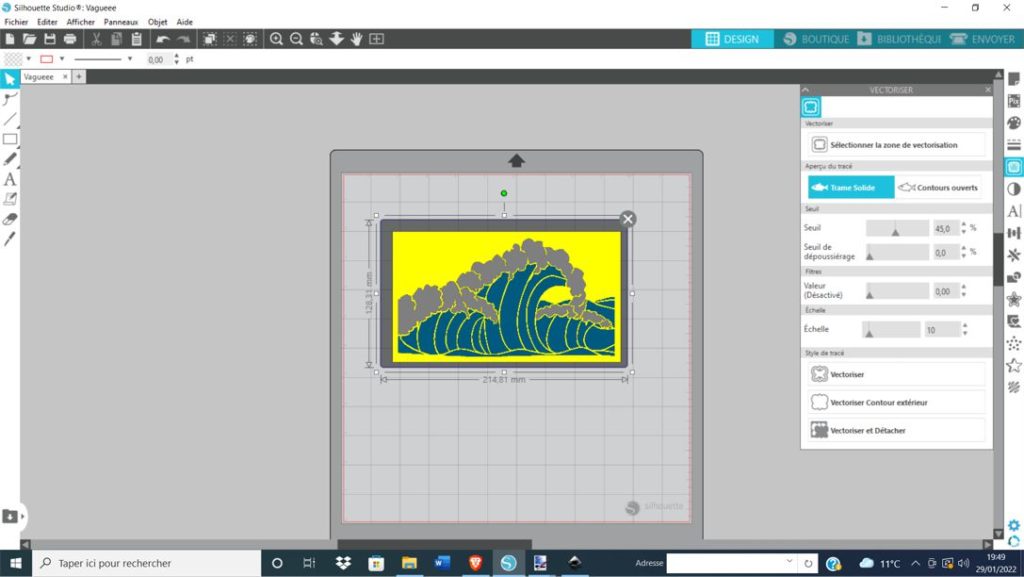
If you use a Silhouette Cameo or Portrait machine with the Silhouette Studio software, this method is for you:
1️⃣- Open Silhouette Studio
2️⃣- Click "File," then "Open," and select the logo you want to vectorize
3️⃣- Wait for the logo to appear, then click the butterfly-shaped icon labeled "Open the Trace Window," located on the middle right side of the software
4️⃣- Click "Select Trace Area" and select the entire logo
5️⃣- Click "Trace"
6️⃣- And you're done!
2 - Vectorizing in Cricut Design Space
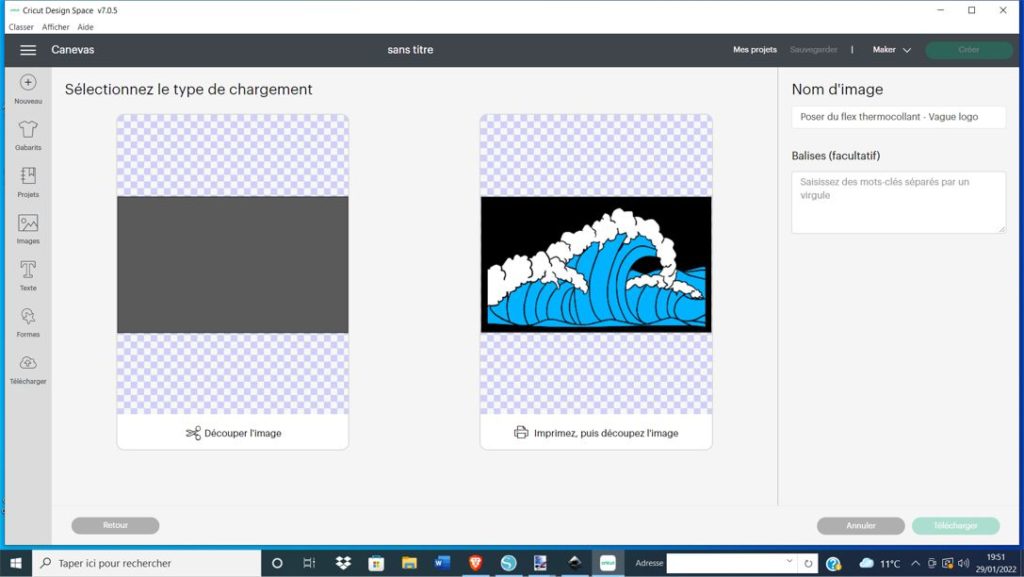
If you have a Cricut cutting machine (Cricut Maker, Cricut Joy), vectorization is super simple, since you just follow the steps when you upload your logo to the Cricut Design Space software.
Check out this video, which does a perfect job of explaining how to vectorize easily in the software
3 - Vectorizing in Inkscape
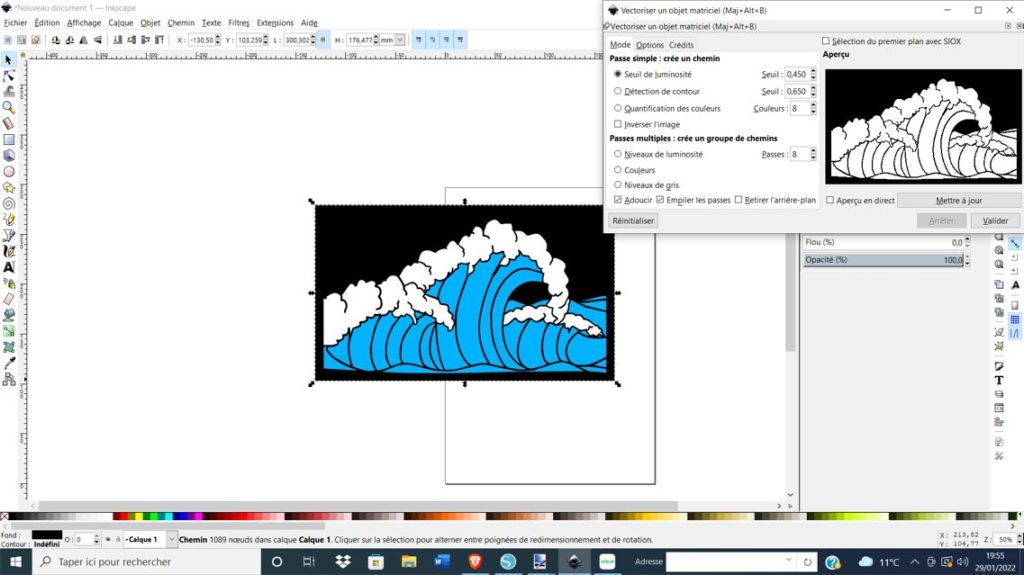
The 3rd method works with any software, whether you have a Silhouette Cameo, Cricut, ScanNCut, or another cutting machine. Inkscape vectorization is a popular option. Here's how:
1️⃣- Download Inkscape, which is a free program
2️⃣- Click "File," then "Open," and choose your logo
3️⃣- Click your logo, then "Path" at the top of the screen, and finally "Trace Bitmap"
4️⃣- Click "OK," move your logo with your mouse, and your logo will be vectorized!
If you're not completely happy with the vectorization, repeat the process and change the settings right before you confirm it.
Now you need to save the logo to your files. Here's how:
1️⃣- Delete the original logo so only the vectorized logo is left on the page
2️⃣- Go to "File," then "Save As," and choose "DXF" as the file type
3️⃣- Once that's done, all that's left is to import your vectorized logo into the software of your choice, and you're all set!
We hope this blog post was helpful and that it's helped you vectorize your logo so you can make your own heat transfer vinyl designs.
To get the most competitive heat transfer vinyl on the market, feel free to check out our heat transfer vinyl shop!
Lots of types of vinyl are available, like glitter HTV, velvet HTV, and even holographic vinyl!



Comments
No comments yet. Be the first to share your experience.
Leave a comment