Wenn du auf die Idee kommst, dein Logo oder Motiv mit Flexfolie auf ein T-Shirt zu bringen, folgt darauf oft ein langer Prozess aus Gestaltung und Schnitt, bevor du es endlich auf ein Textil aufbringen kannst.
In diesem Artikel schauen wir uns gemeinsam an, wie du ein Logo vektorisierst (kostenlos). Dieser Schritt ist wichtig, damit das Ergebnis auf deinem T-Shirt optimal wird. 👕
Doch bevor wir loslegen, stellen wir uns eine einfache Frage:
Was ist Vektorisierung?
Beim Vektorisieren wird dein Bild so umgewandelt, dass es keine Pixel mehr hat.
Wenn du dein Logo nicht vektorisierst, bevor du die Flexfolie schneidest, werden die Ränder womöglich nicht glatt, weil die Pixel des Logos mitgeschnitten werden.
Außerdem kann das Messer deines Plotters beim Schneiden eines nicht vektorisierten Motivs beschädigt werden, weil die Ecken des Motivs pixelig sind. (Das Messer muss dann viele kleine Hin- und Herbewegungen machen, statt glatt durchzuschneiden.)
1 - Ein Logo kostenlos mit Silhouette Studio vektorisieren
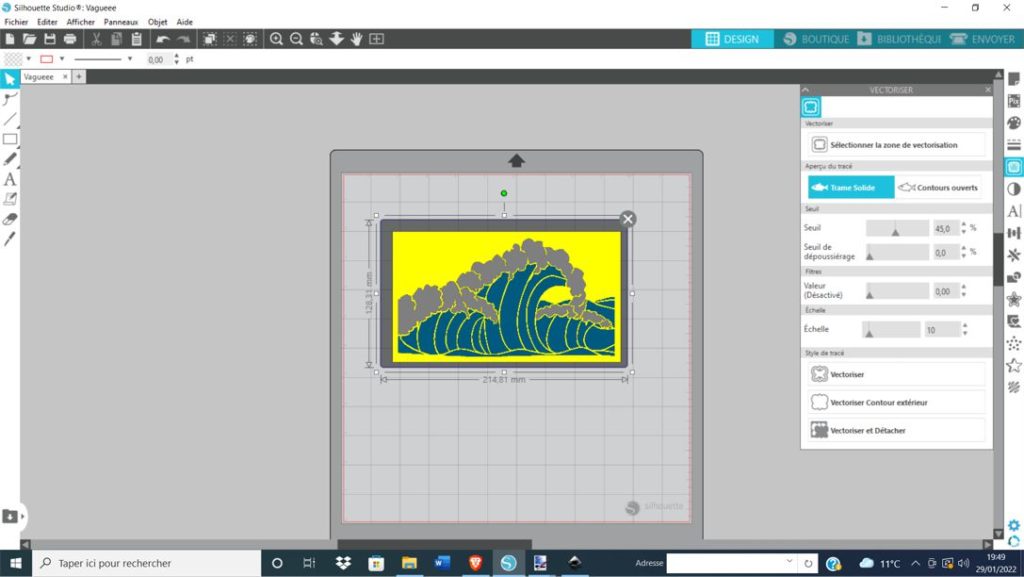
Wenn du eine Silhouette Cameo oder Portrait mit der Software Silhouette Studio verwendest, ist diese Methode genau das Richtige für dich:
1️⃣- Öffne die Software Silhouette Studio
2️⃣- Klicke auf „Datei“, dann auf „Öffnen“ und wähle das Logo aus, das du vektorisieren möchtest
3️⃣- Warte, bis das Logo erscheint, und klicke dann auf das Schmetterlingssymbol „Fenster zum Vektorisieren öffnen“ in der Mitte rechts in der Software
4️⃣- Klicke auf „Vektorisierungsbereich auswählen“ und markiere das gesamte Logo
5️⃣- Klicke auf „Vektorisieren“
6️⃣- Fertig!
2 - Vektorisieren mit Cricut Design Space
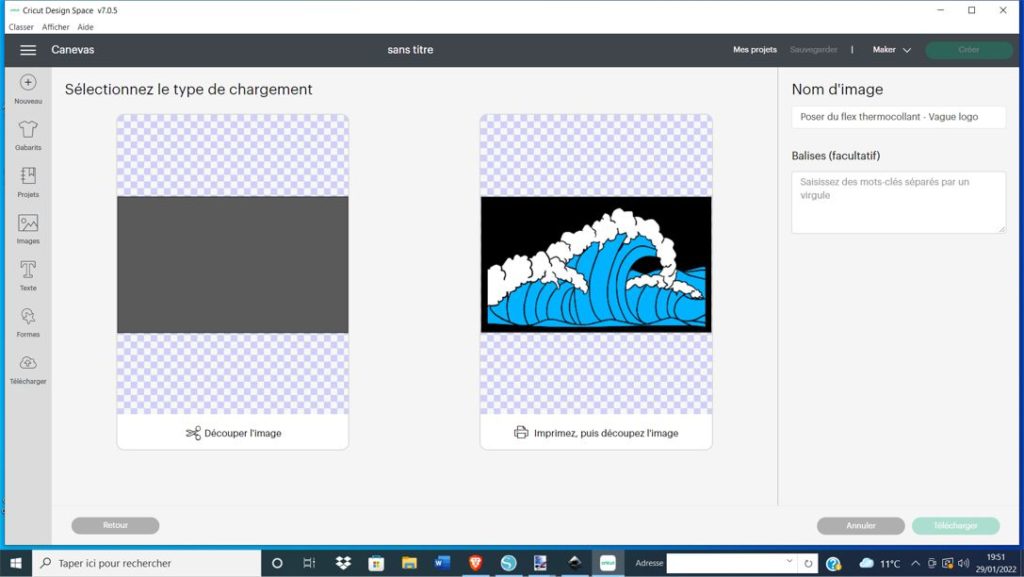
Du hast einen Cricut-Plotter (Cricut Maker, Cricut Joy)? Dann ist die Vektorisierung ganz einfach: Du folgst beim Hochladen deines Logos in Cricut Design Space einfach den Schritten.
Schau dir am besten dieses Video an, das perfekt erklärt, wie du in der Software ganz einfach vektorisierst
3 - Vektorisieren mit Inkscape
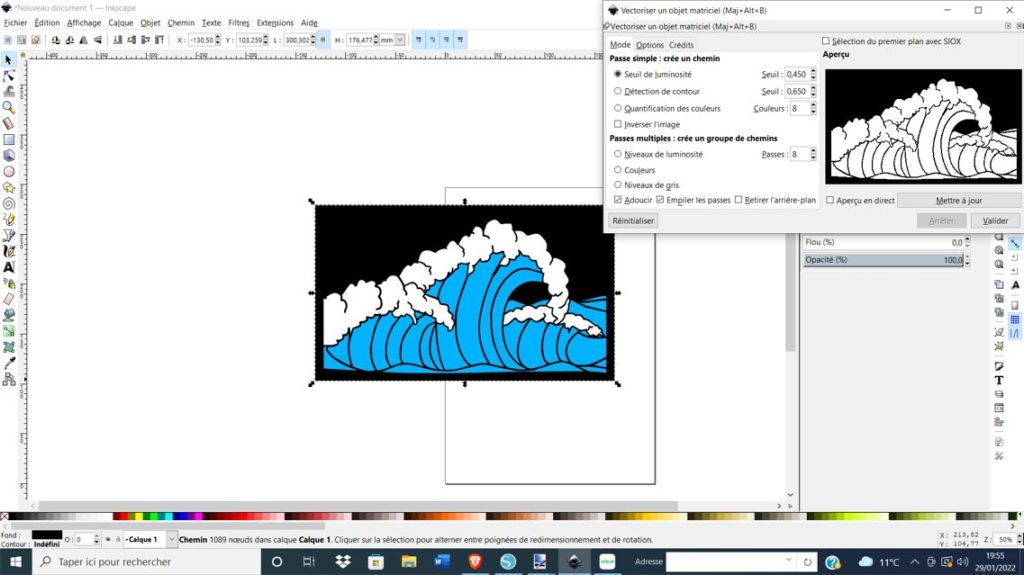
Die dritte Methode funktioniert mit allen Programmen, egal ob du eine Silhouette Cameo, eine Cricut, einen ScanNCut oder einen anderen Plotter hast. Die Vektorisierung mit Inkscape ist sehr verbreitet. So geht's:
1️⃣- Lade dir das kostenlose Programm Inkscape herunter
2️⃣- Klicke auf „Datei“, dann auf „Öffnen“ und wähle dein Logo aus
3️⃣- Klicke auf dein Logo, dann oben auf „Pfad“ und schließlich auf „Bitmap nachzeichnen“
4️⃣- Klicke auf „Bestätigen“, verschiebe dein Logo mit der Maus, und schon ist es vektorisiert!
Wenn dir das Ergebnis nicht ganz gefällt, wiederhole den Vorgang und ändere die Einstellungen, kurz bevor du die Vektorisierung bestätigst.
Jetzt musst du das Logo nur noch in deinen Dateien speichern. So geht's:
1️⃣- Lösche das alte Logo, sodass nur noch das vektorisierte Logo auf der Seite ist
2️⃣- Gehe auf „Datei“, dann auf „Speichern unter“ und wähle „DXF“ als Dateityp
3️⃣- Danach musst du dein vektorisiertes Logo nur noch in die Software deiner Wahl importieren, fertig!
Wir hoffen, dass dir dieser Blogartikel geholfen hat, dein Logo zu vektorisieren, damit du deine eigene Textilgestaltung mit Flexfolie umsetzen kannst.
Wenn du dir die preiswertesten Flexfolien auf dem Markt sichern möchtest, wirf gern einen Blick in unseren Shop für Flexfolien!
Es gibt zahlreiche Arten von Flexfolie, zum Beispiel Glitzer-Bügelfolie, Samt-Bügelfolie oder holografische Bügelfolie!


Kommentare
Noch keine Kommentare. Schreib den ersten und teile deine Erfahrung.
Kommentar schreiben