
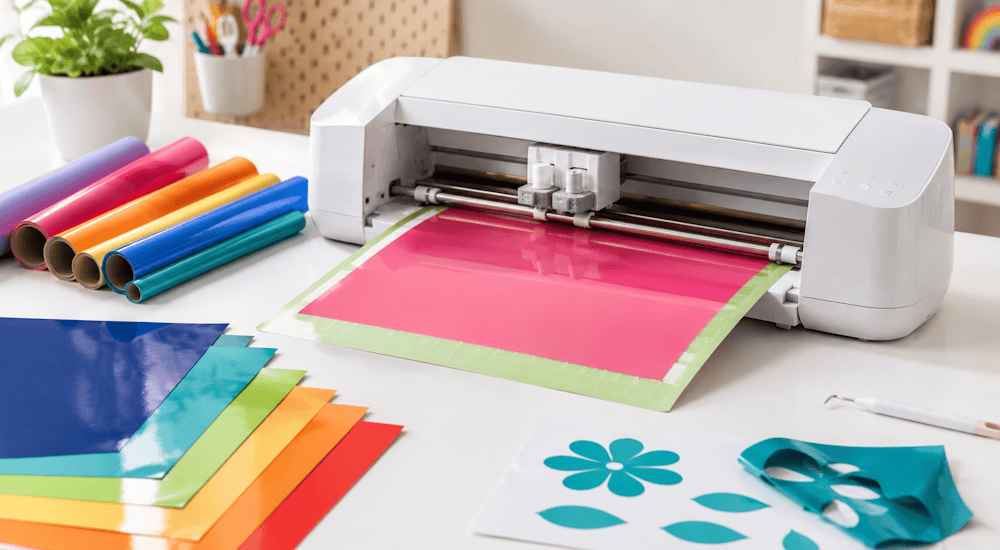
Vuoi tagliare il vinile adesivo con un plotter Cricut ma non sai da dove cominciare 🤔? La buona notizia è che in realtà è facilissimo! In questo articolo scoprirai i semplici passaggi per tagliare il vinile con la tua Cricut e vedrai come ottenere ottimi risultati ogni volta.
I plotter Cricut sono strumenti creativi straordinari per progetti di ogni tipo, dall’arredamento ai regali personalizzati e molto altro. Ma quando si è alle prime armi, tagliare il vinile con la Cricut può sembrare un po’ complicato.
Che tu stia muovendo i primi passi con la Cricut o abbia già più esperienza, vale la pena dedicare un minuto a imparare come tagliare e applicare il vinile adesivo per ottenere i risultati migliori sui tuoi supporti!
Cos’è il vinile adesivo?
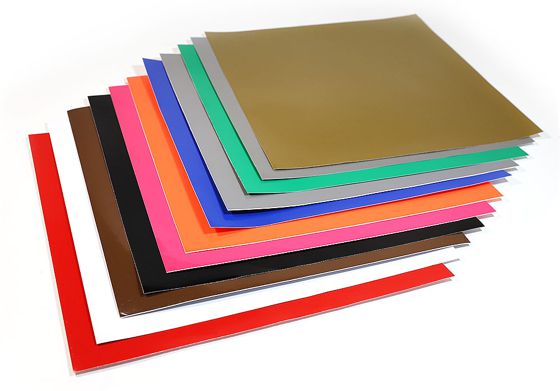
Innanzitutto, il vinile adesivo (o vinile autoadesivo) è composto da due strati. Quello superiore è il vinile vero e proprio, con un lato adesivo: è il materiale che taglierai e applicherai per realizzare il tuo progetto. Il secondo strato è un supporto in cartoncino.
Puoi immaginare il vinile un po’ come uno sticker: sopra c’è l’adesivo e sul retro una carta protettiva che gli impedisce di attaccarsi per sbaglio agli oggetti.
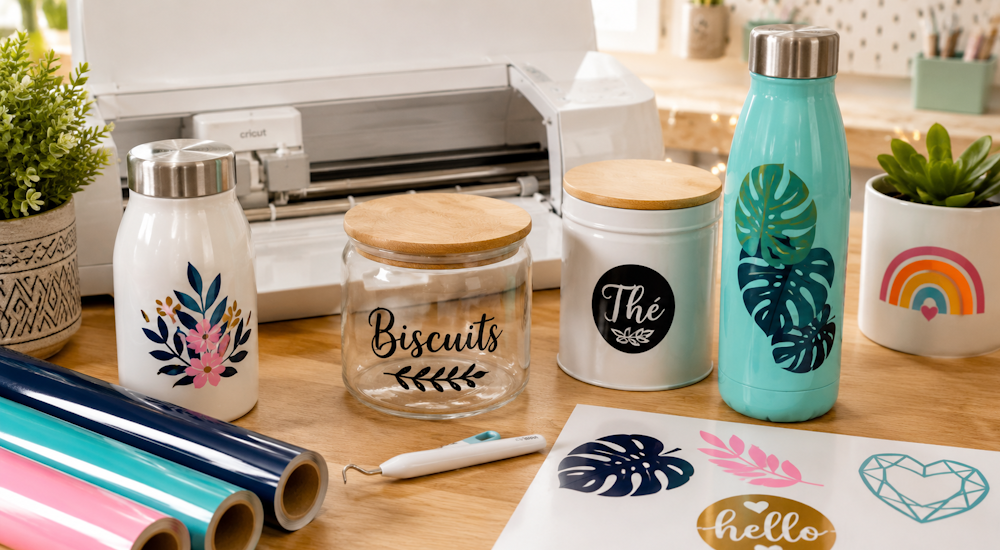
Il vinile si può applicare sulla maggior parte delle superfici piane. Dà il meglio di sé su superfici lisce e non porose come pareti, vetro e plastica. ✔️
❗ IMPORTANTE: non confondere il vinile adesivo con il vinile termoadesivo. Il vinile termoadesivo si usa soprattutto sui capi d’abbigliamento e, per applicare il motivo sul supporto, serve un ferro da stiro o una pressa a caldo.
Il vinile adesivo, invece, si applica sui supporti grazie al suo lato adesivo, quindi non richiede calore. Per distinguerli facilmente basta guardare il retro del prodotto: il vinile termoadesivo è ricoperto da uno strato di plastica trasparente, mentre il vinile adesivo ha un supporto di carta quadrettato.
Il taglio del vinile con la Cricut
Per tagliare il vinile con un plotter Cricut, prima di iniziare il tuo progetto creativo ti serviranno alcuni materiali e strumenti.
Eccoli!
1️⃣ - Il materiale necessario:
- Un plotter Cricut: in questo caso useremo la Cricut Maker.
- Un tappetino da taglio per Cricut (per tagliare il vinile il tappetino è indispensabile).
- Pellicola di trasferimento (che si tratti di vinile lucido od opaco, è indispensabile per trasferire il motivo tagliato su una superficie liscia).
- Un uncino per spellicolatura (serve a rimuovere il vinile in eccesso che non fa parte del motivo; se non ti trovi bene con questo strumento, puoi usare anche una pinzetta).
- Vinile adesivo (è il protagonista del progetto: senza vinile adesivo non avresti nessun motivo da trasferire).
Ora mettiamoci all’opera e creiamo un progetto in vinile con la Cricut! 😀 Ti guideremo passo dopo passo, spiegandoti tutto il procedimento.
2️⃣ - Prepara la grafica nel software Cricut
Se usi un’immagine della libreria di Cricut Design Space, probabilmente il progetto è già pronto per il taglio. Non servono passaggi aggiuntivi e dovresti poter inviare subito l’immagine al plotter.
Se invece non parti da progetti o immagini già pronti, potrebbero servire alcuni passaggi in più per preparare il progetto al taglio. Spesso si caricano file in formato SVG o JPEG, che richiedono qualche ritocco ai colori, ai gruppi e ai livelli dell’immagine per ottenere un taglio pulito.
Dopo aver caricato il logo nel software, arriverai allo strumento di rimozione dello sfondo: qui dovrai eliminare lo sfondo del motivo per semplificare il taglio. (Se l’hai già fatto al di fuori del software, clicca su «applica e continua».)
Per verificare che l’immagine sia pronta per il taglio, una volta caricata sul tappetino virtuale puoi cliccare sul pulsante verde «Crea» 🟢 in alto a destra.
Se il software ti segnala che l’immagine è «incompatibile», significa che devi ridurne le dimensioni.
Quando l’immagine è pronta per il taglio, il software Cricut ti porterà a una nuova pagina di preparazione:
Dopo aver cliccato su «Crea», noterai che il software suddivide l’immagine in più parti, una per colore. Queste parti ti permettono di tagliare progetti multicolore con il tuo plotter.
Una volta suddiviso il motivo, potrai scegliere quante copie del progetto vuoi ottenere.
Controlla che la grafica sia posizionata correttamente sul tappetino virtuale del software. Per tagliare il vinile adesivo non è necessario attivare la modalità «specchio».
A questo punto sei pronto a inviare l’immagine alla fase successiva.
3️⃣ - Invia l’immagine pronta alla Cricut per il taglio
Ormai ci sei quasi: è il momento di tagliare la tua grafica. Non ti resta che seguire le istruzioni che compaiono sullo schermo. Verifica che la tua Cricut sia accesa. Quando hai controllato che sia accesa e collegata, imposta il plotter sul materiale «vinyl».
Puoi usare anche il vinile glitter nei tuoi progetti: in questo caso dovrai impostare la Cricut su «Glitter Vinyl» ✨
Ora che nel programma è tutto pronto, vediamo come posizionare il vinile sul tappetino da taglio Cricut. Prendi il pezzo di vinile e appoggialo sul tappetino da taglio, facendo attenzione che il lato in cartoncino sia a contatto con il tappetino e che il vinile sia rivolto verso l’alto. ✅
Prendi il tappetino da taglio con il vinile adesivo e caricalo nella Cricut. Per caricarlo correttamente, premi il pulsante con la freccia sul plotter. ⏫
Quando il tappetino è caricato correttamente, il programma dovrebbe darti la possibilità di avviare il taglio premendo il pulsante con il logo Cricut.
Mentre il plotter taglia, potrai seguire l’avanzamento grazie a una barra di progresso sullo schermo. Quando il taglio è terminato, premi il pulsante con la freccia per scaricare il tappetino. ⏬
Se il progetto prevede un solo colore, hai finito.
Per i progetti con più colori, stacca il vinile dal tappetino, poi posiziona sul tappetino un nuovo foglio di vinile del colore richiesto. Ripeti i passaggi precedenti per tutti i colori necessari a realizzare il progetto.
Dopo aver tagliato tutti i fogli di vinile, scarica il tappetino e clicca sul pulsante «Finish». Ecco fatto: hai finito di tagliare il vinile con la tua Cricut!
Per ottenere finalmente la grafica che aspetti, devi passare alla spellicolatura. Questa fase serve a rimuovere il vinile in eccesso tagliato dal plotter che non fa parte del motivo. Spellicolare il vinile a mani nude è quasi impossibile, per questo ti consigliamo vivamente di usare un uncino per spellicolatura.
Al termine di questa fase, il tuo motivo in vinile dovrebbe essere perfetto. 😊
Il trasferimento del motivo in vinile adesivo
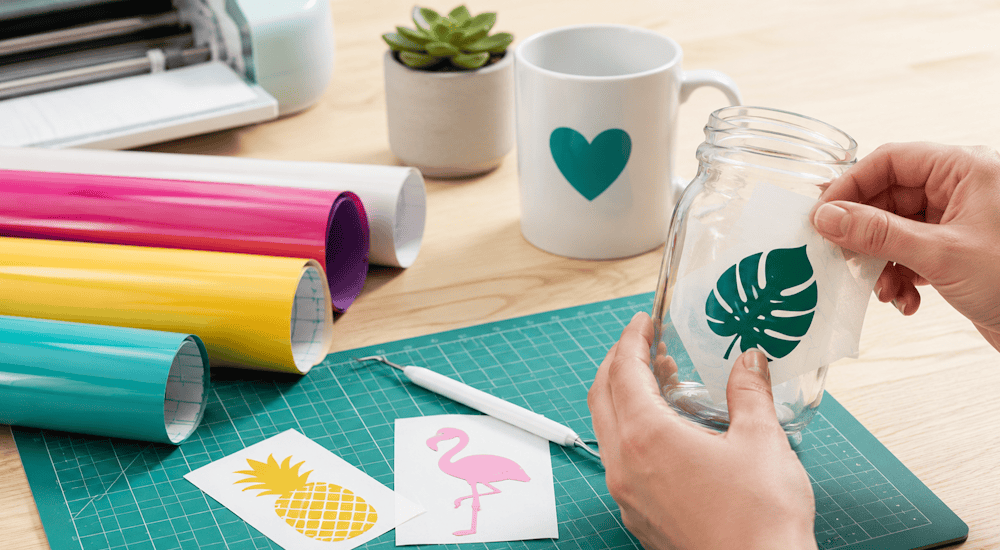
Per spostare il vinile sulla superficie su cui vuoi applicarlo si usa la pellicola di trasferimento. Per trasferire correttamente il vinile adesivo, devi prima fissare la grafica in vinile sulla pellicola di trasferimento, in questo modo:
-
Taglia un pezzo di pellicola di trasferimento grande quanto il motivo e stacca la carta protettiva sul retro.
-
Dopo aver tolto la carta protettiva, applica la pellicola sull’immagine in vinile che vuoi trasferire: deve coprire il motivo. Per farla aderire leggermente, premi partendo dal centro e spostandoti verso l’esterno, così da evitare le bolle. Puoi aiutarti con una spatola per vinile per far aderire bene il vinile alla pellicola.
-
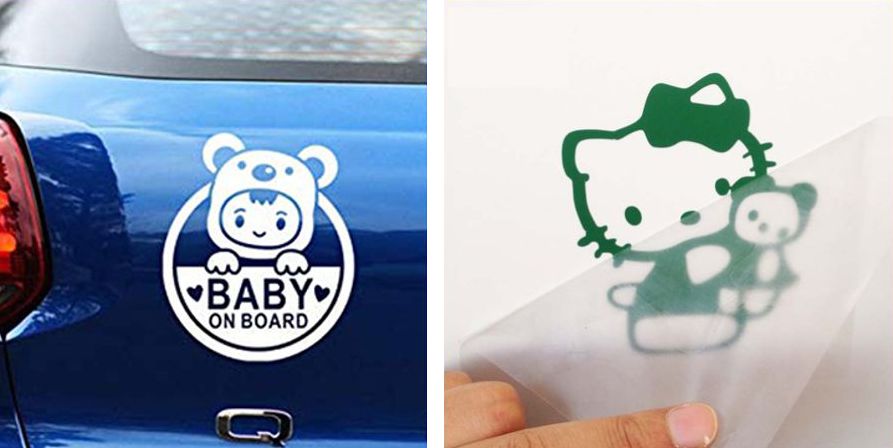
Infine solleva la pellicola: il motivo in vinile dovrebbe restarle attaccato, staccandosi dal supporto in cartoncino.
Ora sei pronto ad applicare l’immagine sul supporto e a completare il progetto. 😎
Per applicare il vinile nel modo giusto, segui questi passaggi:
-
Assicurati che la superficie sia pulita e che non ci sia nemmeno un granello di polvere che possa compromettere la tenuta del vinile o rovinarne l’aspetto. Controlla anche che sia ben asciutta. Quando la superficie è pulita e asciutta, puoi posizionarci sopra la pellicola di trasferimento con il motivo.
-
Dopo aver sistemato correttamente la pellicola e il vinile sulla superficie, passa più volte la spatola sulla pellicola perché il motivo aderisca al supporto. Parti dal centro e procedi verso l’esterno, per evitare pieghe o bolle nel vinile.
-
Quando l’immagine in vinile adesivo è ben fissata, stacca la pellicola di trasferimento.
Se la pellicola non si stacca dal vinile, ripassa ancora la spatola sul vinile per farlo aderire meglio al supporto.
Dopo tutti questi passaggi, il vinile dovrebbe essere applicato correttamente sulla superficie del tuo progetto! Ce l’hai fatta: hai imparato a tagliare e applicare il vinile adesivo con il plotter Cricut. 😉
Per ordinare vinile adesivo di qualità, non esitare a dare un’occhiata al nostro negozio di vinili adesivi, compatibili con tutti i plotter e gli accessori Cricut!
Commenti
Ancora nessun commento. Scrivi il primo e racconta la tua esperienza.
Lascia un commento