
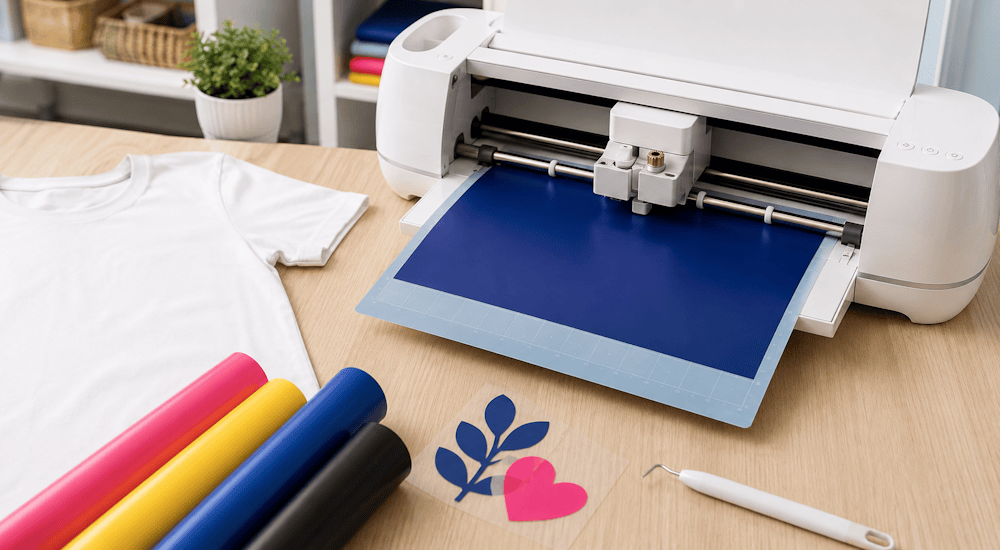
Oggi ti mostriamo come tagliare il vinile termoadesivo con i plotter Cricut. Uno dei vantaggi del vinile termoadesivo è che puoi applicarlo su tanti tessuti diversi, come camicie, cuscini, t-shirt e borse.
Che tu abbia una Cricut Maker, una Cricut Explore Air o una Cricut Joy, ecco come tagliare il tuo primo motivo in vinile termoadesivo con Cricut:
Seleziona il motivo
Quando sei pronto a tagliare un motivo nel vinile termoadesivo, apri il software Cricut Design Space e prepara il tuo motivo. In questo esempio abbiamo usato un design del nostro pacchetto di 50 design gratuiti per Cricut, che puoi scaricare anche tu! 🎨
Posiziona il motivo sul tappetino virtuale della Cricut cliccando su «Carica», poi su «Carica immagine», e scegli il motivo che vuoi tra i tuoi file.
Regola il motivo alla dimensione giusta.
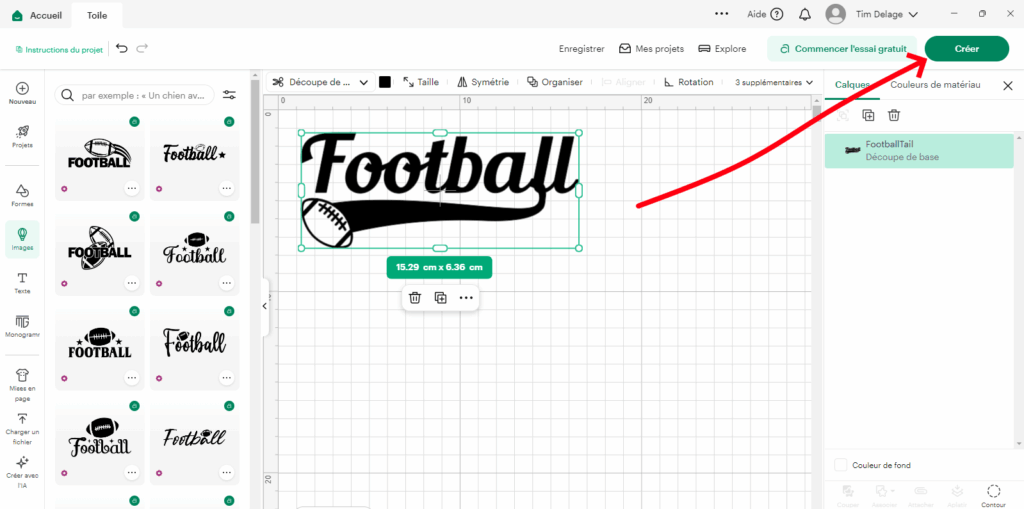
Quando il motivo è pronto, clicca su «Crea». Lo schermo dovrebbe apparire così. ⬇️
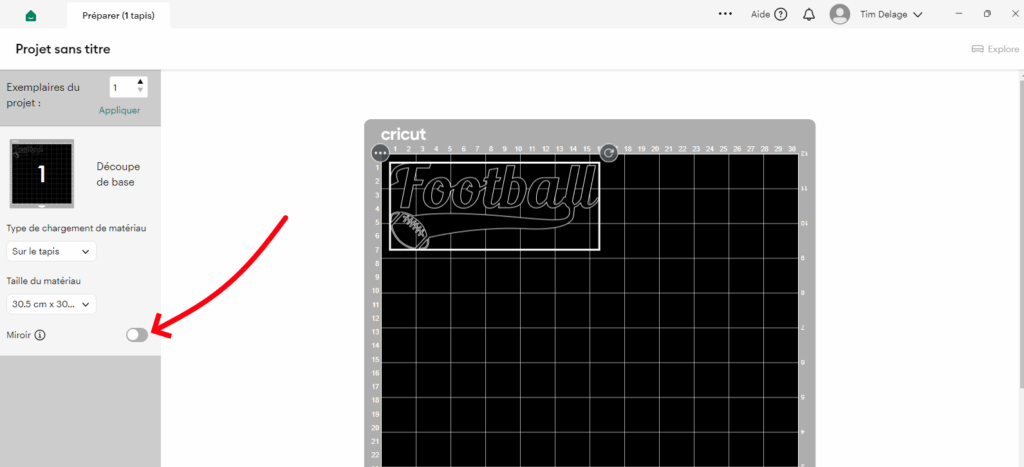
Visto che si tratta di vinile termoadesivo, devi assicurarti che l’immagine sia in modalità specchio. Il vinile termoadesivo, infatti, va sempre tagliato a specchio, così il motivo risulterà nel verso giusto quando lo applicherai sul tessuto.
Per specchiare il motivo, clicca sul pulsante «Mirror» sul lato sinistro, sotto la miniatura del tappetino.
Quando clicchi sul cursore, il pulsante a sinistra si attiva e il tappetino mostra il motivo al contrario. 🔄
Clicca su «Continua» e ti verrà chiesto di scegliere il plotter. Per questo articolo usiamo la Cricut Maker, ma anche la Cricut Explore Air 2, per esempio, taglia benissimo il vinile termoadesivo.
Se selezioni la Cricut Maker per tagliare il vinile termoadesivo, ti verrà chiesto di impostare il materiale.
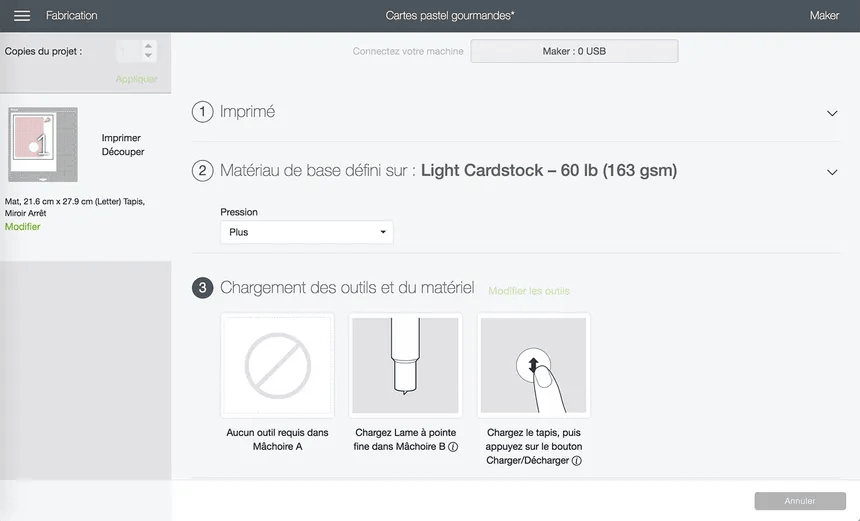
Abbiamo scelto «every day Iron ON», adatto al vinile termoadesivo standard, ma esistono anche opzioni per il vinile termoadesivo glitter, il vinile termoadesivo velluto e tutti gli altri tipi di vinile disponibili nel nostro negozio di vinili termoadesivi. (Tutte le impostazioni dei nostri vinili sono indicate nella descrizione di ciascun prodotto.)
Dopo aver selezionato il materiale, il plotter ti chiederà di inserire il tappetino e il taglio comincerà.
Non dovrai fare altro che aspettare qualche minuto che il taglio finisca, poi potrai estrarre il tappetino.
Posizionare il vinile termoadesivo sul tappetino Cricut
Dopo averti mostrato come tagliare il vinile termoadesivo con il plotter Cricut, ecco qualche consiglio per posizionare correttamente il vinile sul tappetino da taglio:
1️⃣ - Il lato lucido del vinile va sempre rivolto verso il basso. Tieni presente che alcuni vinili hanno colori diversi sul fronte e sul retro, mentre altri hanno lo stesso colore su entrambi i lati. Perché il taglio riesca bene, è quindi fondamentale basarsi solo sulla differenza tra lato lucido e lato opaco, e non sul colore del vinile, che potrebbe trarre in inganno.
2️⃣ - Quando il vinile è sul tappetino, inseriscilo nel plotter con il pulsante con la freccia lampeggiante della tua Cricut. Poi premi il pulsante Cricut per avviare il taglio.
3️⃣ - Quando il taglio del motivo è terminato, stacca il vinile dal tappetino Cricut. Mentre lo stacchi, a un certo punto potrebbe arricciarsi, ma questo non influirà sui tagli.
4️⃣ - Più usi il tuo tappetino per Cricut, più rischia di perdere il suo potere adesivo. Quando il vinile non riesce più ad aderire al tappetino, non serve ricomprarne un altro: puoi usare del nastro di carta per fissare il vinile al tappetino.
5️⃣ - Un piccolo consiglio: non aver paura di fare prima un taglio di prova. Seleziona un motivo piccolo e segui tutto il processo di taglio con il vinile termoadesivo. Così eviti errori e sprechi, se non sei del tutto sicuro delle impostazioni giuste.
6️⃣ - Taglia il vinile in base alla dimensione del motivo. Quando prepari i tappetini, la maggior parte dei motivi non richiede un foglio intero di vinile. Puoi pretagliare il vinile termoadesivo a una misura vicina a quella del motivo. Usa la griglia del tappetino per capire la dimensione necessaria e lasciati un piccolo margine di 2 cm.
Eliminare il vinile termoadesivo in eccesso
Dopo aver tolto il vinile dal tappetino da taglio, il passaggio successivo si chiama «spellicolatura» o «weeding». Si tratta semplicemente di rimuovere il vinile in eccesso intorno al motivo, cioè la parte che non vuoi trasferire sul prodotto finale.
Come evitare di sprecare vinile durante la spellicolatura?
Se il motivo che hai tagliato è molto più piccolo del pezzo di vinile su cui l’hai tagliato, ti consigliamo di rifilare il vinile in eccesso prima di procedere con la spellicolatura.
Ti basta un paio di forbici per tagliare intorno al motivo. Così potrai usare il resto del pezzo di vinile per un altro progetto.
Per togliere il vinile termoadesivo in eccesso, ti servirà un uncino per spellicolatura.
Il trasferimento sul tessuto
Ora siamo pronti a trasferire sulla nostra t-shirt il motivo tagliato e spellicolato! 👕
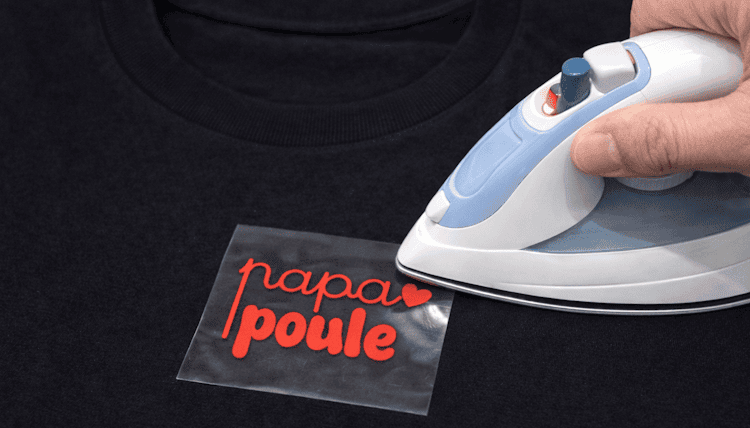
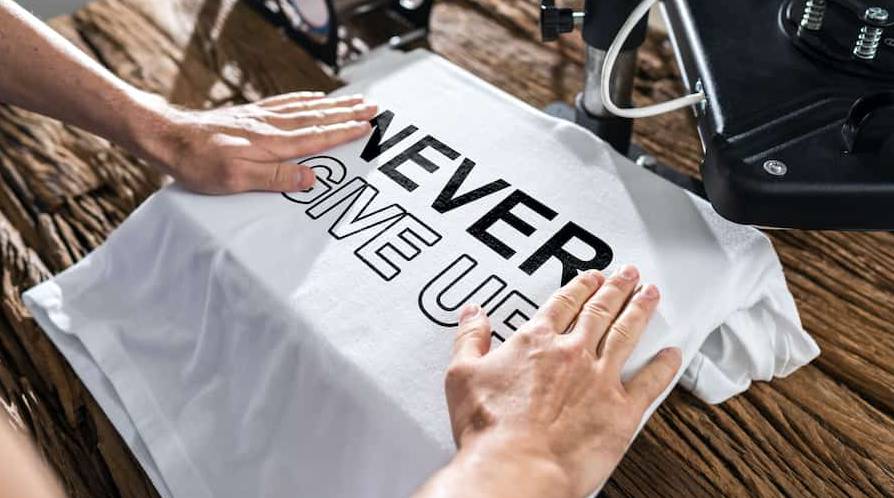
Per trasferire correttamente il vinile termoadesivo sul tessuto ti servono due cose, calore e pressione: puoi usare un ferro da stiro o una pressa a caldo.
Come applicare il vinile termoadesivo sul tessuto?
Per prima cosa collega il ferro da stiro o la pressa a caldo e imposta la temperatura a 150 °C. Poi posiziona il motivo sul tessuto, con il foglio di supporto in plastica trasparente rivolto verso l’alto, in modo che il motivo sia appoggiato dal lato giusto.
Premi con il ferro da stiro ed esercita una pressione su ogni parte del motivo per circa 10-20 secondi. Alcuni tipi di vinile richiedono più o meno pressione, quindi controlla le istruzioni del materiale che stai usando.
Se usi un ferro da stiro, ricordati di spostarlo mentre premi, così ogni parte del motivo riceverà calore e pressione.
Quando ogni parte del motivo è stata pressata bene, puoi iniziare a staccare lentamente il foglio di supporto. Se il vinile non si è attaccato al tessuto, ripeti il procedimento.
NOTA: alcuni tipi di vinile termoadesivo sono «da staccare a freddo»: significa che devi lasciarli raffreddare completamente prima di rimuovere il foglio di plastica trasparente.
Una volta applicato correttamente, il vinile termoadesivo è pronto per essere indossato. Aspetta almeno 24 ore prima di lavare il capo, così il vinile avrà il tempo di fissarsi bene al tessuto. Per risultati migliori, lava la t-shirt al rovescio.
Ed ecco tutto quello che devi sapere per realizzare il tuo primissimo progetto di stampa termoadesiva!
Sappiamo che imparare a usare un nuovo plotter e un nuovo programma a volte può essere un po’ complicato. Per fortuna Cricut è riuscita a creare un plotter e un software tra i più semplici da usare nel mondo della personalizzazione tessile. Se hai domande, non esitare a scriverci a contact@papier-transfert.fr.
Se vuoi realizzare progetti divertenti con il vinile termoadesivo usando Cricut Maker, Cricut Explore Air o Cricut Joy, dai un’occhiata al nostro negozio di vinili termoadesivi! Con questo materiale le possibilità creative sono infinite! 🤩



Commenti
Ancora nessun commento. Scrivi il primo e racconta la tua esperienza.
Lascia un commento