

Die Software Silhouette Studio ist ein echtes Kreativ-Juwel und bietet dir jede Menge Werkzeuge und Tricks, um deine kreativen Ideen umzusetzen.
Heute schauen wir uns diese Software genauer an und zeigen dir, was sie in Sachen Schriftarten alles kann!
1 - Die Schriftart in Silhouette ändern
Um in Silhouette Studio mit dem Schreiben anzufangen, klickst du ganz links auf dem Bildschirm auf das Symbol „A“, klickst einmal in die Arbeitsfläche und kannst dann die Wörter oder Sätze schreiben, die du möchtest.
Silhouette Studio verwendet zunächst die Standardschriftart deines Computers. Um die Schriftart zu ändern, klickst du auf das Symbol „A“, das sich diesmal rechts auf dem Bildschirm befindet und nicht links. Markiere deinen gesamten Text und wähle die Schriftart aus, die dir gefällt.
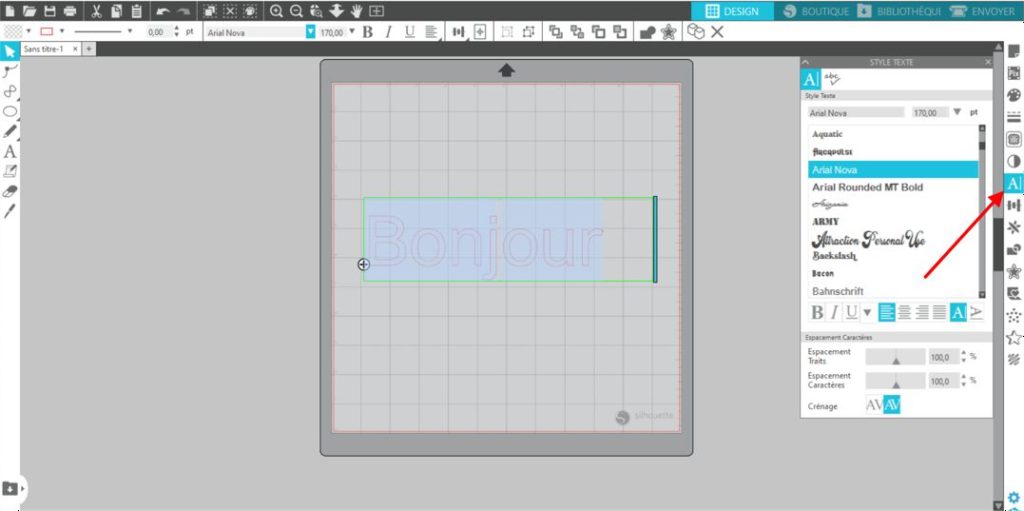
Wenn du in Silhouette die Standardschriftart ändern möchtest, damit du nicht während deiner Sitzung jedes Mal auf das Symbol „A“ klicken musst, klickst du zuerst rechts im „A“-Menü auf die gewünschte Schriftart. Klicke dann links auf das Symbol „A“: Die Software hat sich diese Schriftart jetzt gemerkt. So kannst du durchgehend mit deiner Schriftart schreiben, ohne alles noch einmal einstellen zu müssen.
Hinweis: Wenn du mehr Schriftarten haben möchtest, hast du zwei Möglichkeiten. Du kannst Schriftarten im Internet herunterladen. Die Seite 1001 Fonts bietet zum Beispiel Tausende Schriftarten an. Aber Achtung: Die meisten davon sind nur für den privaten Gebrauch kostenlos. Du kannst Schriftarten auch direkt in der Silhouette-Software bestellen, allerdings kosten sie Geld und sind manchmal ziemlich teuer!
2 - Zeichenabstand
Den Abstand zwischen den Buchstaben zu vergrößern oder zu verkleinern, ist ganz einfach:
Klicke auf das Wort, das du ändern möchtest, und markiere es mit gedrückter linker Maustaste. Klicke rechts auf dem Bildschirm auf das Symbol „A“. Ganz unten im kleinen Fenster erscheint ein Schieberegler namens „Zeichenabstand“: Damit kannst du den Abstand zwischen den Zeichen vergrößern oder verkleinern. Du kannst den Prozentwert auch über die Tastatur eingeben (das Maximum liegt bei 500 %, aber du wirst sehen, dass das mehr als genug ist!)
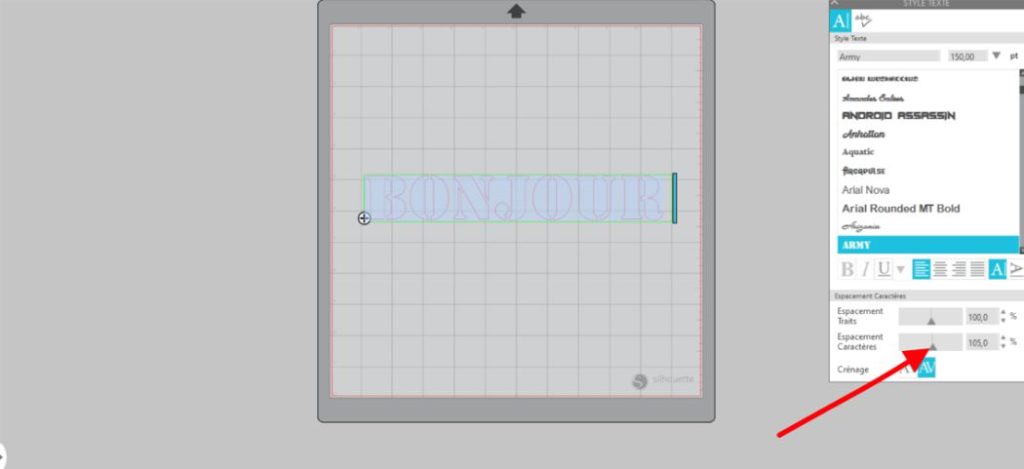
Hinweis: Wenn dein Text aus mehreren Wörtern auf mehreren Zeilen besteht, kannst du mit dem Regler direkt darüber auch den Zeilenabstand anpassen 🙂
3 Silhouette Studio Tutorial - Wie machst du eine dünne Schrift dicker?
Manche Schriftarten, zum Beispiel Schreibschriften, lassen sich wegen ihrer dünnen Linien mit deiner Silhouette Cameo nur schwer schneiden. Wir zeigen dir, wie du deine Schrift dicker machst, damit der Plotter sie problemlos schneiden kann.
Schritt 1 - Tippe deinen Text
Tippe deinen Text in den karierten Arbeitsbereich von Silhouette.
Schritt 2 - Erstelle eine Kontur um deine Schrift:
Klicke rechts auf dem Bildschirm auf das sternförmige Symbol und dann auf den Text, den du getippt hast. Klicke jetzt im kleinen Fenster, das erschienen ist, auf „KONTUR“ und stelle die Stärke des Textes mit dem Abstandsregler ein. Sobald die Stärke passt, klickst du auf Anwenden.
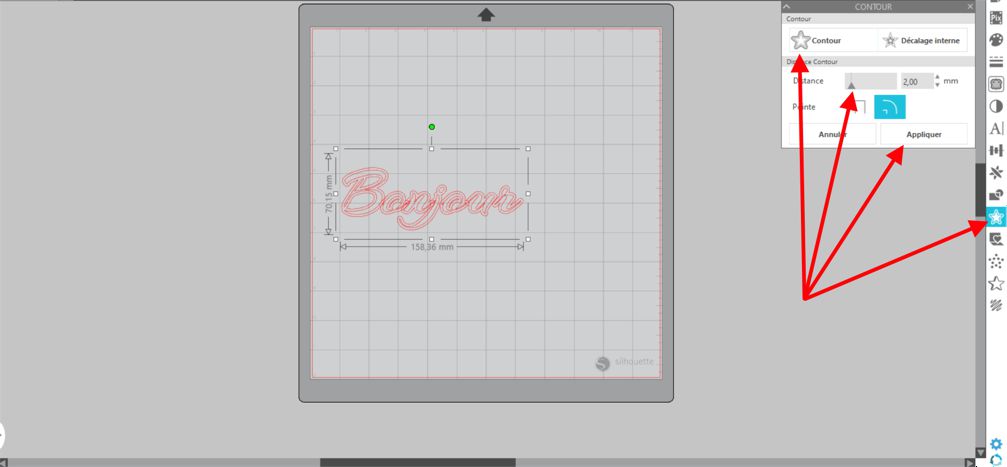
Schritt 3 - Den alten Text verschieben oder löschen
Halte die linke Maustaste auf deinem alten Text gedrückt, um ihn zur Seite zu schieben, und schon hast du einen dickeren Text.
4 Silhouette Tutorial - Überlappende Buchstaben korrigieren
Bei manchen Schriftarten überlappen sich die Buchstaben, wie hier auf dem Bild: Das O überlappt das N, und das N wiederum das J.
Beim Schneiden berücksichtigt die Software diese Überlappungen und schneidet die kleinen überlappenden Stellen mit. Dann siehst du Schnittlinien, die auf dem Textil womöglich nicht besonders schön aussehen.
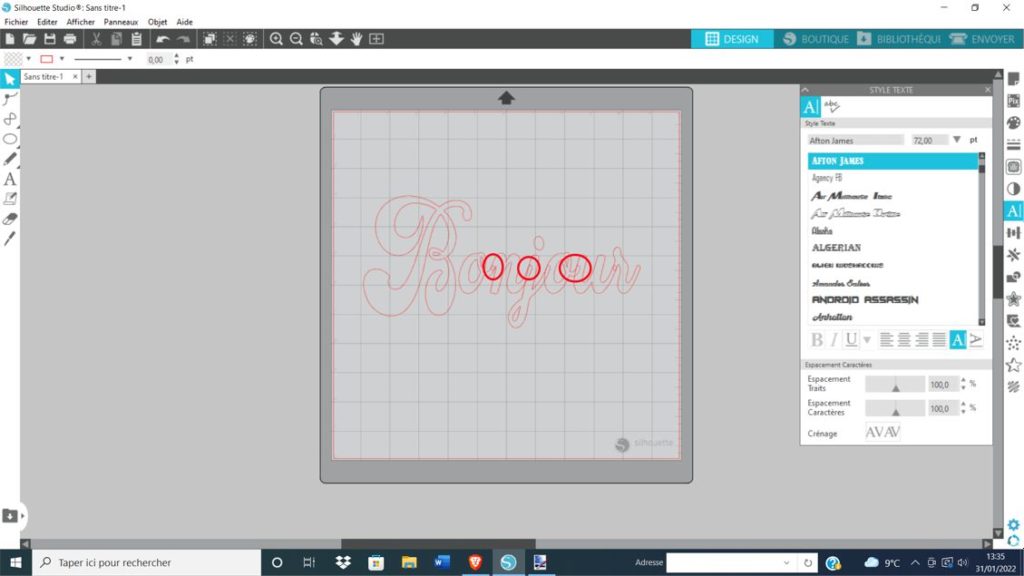
Um das zu beheben, klickst du auf das Wort, öffnest das Fenster mit dem Kreis und dem Rechteck namens „Ändern“ und klickst dann auf „VERSCHWEISSEN“. Du wirst sehen: Die Überlappungen verschwinden wie von Zauberhand! 🧙
5 - Wie bringst du Text in eine runde Form?
Viele möchten ihren Text beim Gestalten eines Motivs rund anordnen, denn das sorgt manchmal für einen ganz besonderen Effekt und Stil.
Folge diesen Schritten, um deinen Text in der Software Silhouette Studio rund anzuordnen:
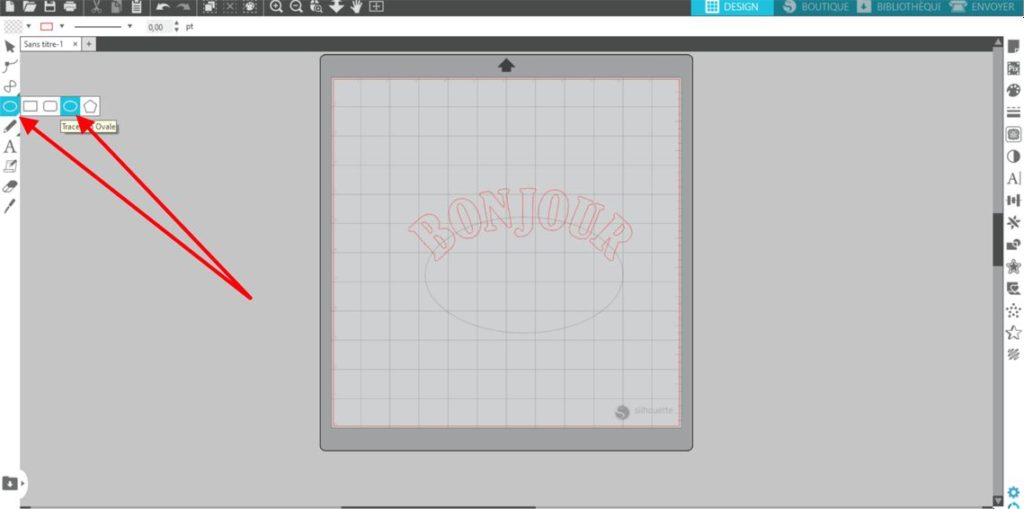
Klicke links auf deinem Bildschirm auf das Fenster mit dem Kreis, wähle die Kreisform aus und zieh mit gedrückter linker Maustaste einen Kreis in der gewünschten Größe auf.
Nimm dann deinen Text und zieh ihn mit gedrückter linker Maustaste einfach auf den Kreis.
Hinweis: Wie du siehst, ist der Kreis jetzt grau. Das bedeutet, dass er beim Schneiden deines Motivs nicht mitgeschnitten wird.
Achtung: Ein Text, der schon verschweißt wurde, lässt sich nicht mehr rund anordnen. Ordne den Text also zuerst rund an und verschweiße ihn danach.
6 - Wie bringst du Text in Wellenform?
Du kannst deinen Text auch wellenförmig anordnen.
Klicke links auf deinem Bildschirm auf das Werkzeug „Linien“ und dann auf das Symbol, das wie ein Unendlichkeitszeichen aussieht.
Klicke in den karierten Arbeitsbereich der Software und klicke erneut, um die Welle zu zeichnen.
Wenn deine Welle fertig ist, machst du einen Rechtsklick, damit das Zeichnen der Welle beendet wird.
Genau wie beim Text im Bogen nimmst du den gewünschten Text mit gedrückter linker Maustaste und lässt ihn auf einer der Kurven deiner Welle los. So passt sich dein Text der Wellenform an. 😉
Jetzt, wo du weißt, wie du in Silhouette Studio Text erstellst und bearbeitest, kannst du schöne Kreationen in ganz unterschiedlichen Stilen umsetzen!
Die Texte, die du mit diesem Silhouette-Studio-Tutorial schneidest, kannst du nutzen, um Textilien mit Flexfolie zu gestalten oder um Sticker aus selbstklebender Vinylfolie zu machen, und es gibt noch viele weitere Möglichkeiten, mit dieser Software deiner Kreativität freien Lauf zu lassen! 🤩
Für hochwertige Textilgestaltung und Sticker mit deiner Silhouette Cameo kannst du auf unserer Website tolle Flexfolien und selbstklebende Vinylfolien bestellen!





Kommentare
Noch keine Kommentare. Schreib den ersten und teile deine Erfahrung.
Kommentar schreiben