Du hast dir wahrscheinlich gerade einen Silhouette-Schneideplotter gekauft und möchtest dein erstes Motiv oder Logo schneiden? Keine Sorge, hier bist du genau richtig 😉
Heute zeigen wir dir die Grundeinstellungen der Software Silhouette Studio, damit du dein erstes Projekt mit der Maschine schneiden kannst!✨
Die Zutaten
Für diese Anleitung musst du:
- Die Software Silhouette Studio herunterladen
- Deinen Silhouette-Cameo-Plotter bereitstellen
- Das Logo, das du schneiden möchtest, im PNG-Format herunterladen
Schritt 1: Dein Logo in Silhouette Studio einfügen
Wenn du die Software Silhouette Studio installiert und deinen Computer mit deinem Schneideplotter verbunden hast, geht es richtig los!
Als Erstes musst du das Logo, das du schneiden möchtest, in die Software einfügen. Dafür gibt es zwei Möglichkeiten:
Methode 1
Wenn dein Design oder Logo nur aus Text besteht, kannst du das Motiv direkt in der Software nachbauen:
Um Text zu schreiben, klickst du links auf dem Bildschirm auf die Schaltfläche mit dem Buchstaben „A“, wählst oben die gewünschte Schriftart aus und klickst dann in das Raster von Silhouette Studio. Jetzt kannst du den gewünschten Text eingeben 😊.
Ist dein Logo dagegen komplexer, musst du es im PNG-Format in die Software einfügen:
Methode 2
Klicke oben rechts auf dem Bildschirm auf „Datei“ und dann auf „Öffnen“. So kannst du auf deinem Computer nach dem Logo suchen, das du gestaltet hast.
Danach ist das Logo in der Software, aber du kannst es noch nicht verwenden, weil es noch nicht vektorisiert ist!
Was ist Vektorisierung? Ein PNG-Bild besteht aus Pixeln. Wenn wir ein PNG-Bild mit unserer Maschine schneiden, wird der Schnitt nicht glatt, weil er den Pixeln des Bildes folgt.
Nach der Vektorisierung hat das Motiv keine Pixel mehr, und der Schnitt wird perfekt glatt.
Übrigens: Bei Methode 1 musst du den Text nicht vektorisieren, denn das übernimmt die Software für uns!
WICHTIG⚠️: Wenn dein Motiv eine zu geringe Auflösung hat, kann es beim Vektorisieren nicht sauber freigestellt werden. Achte also immer auf eine gute Bildauflösung.
Um dein Logo zu vektorisieren, klickst du rechts auf dem Bildschirm auf die Schaltfläche mit dem Schmetterling.
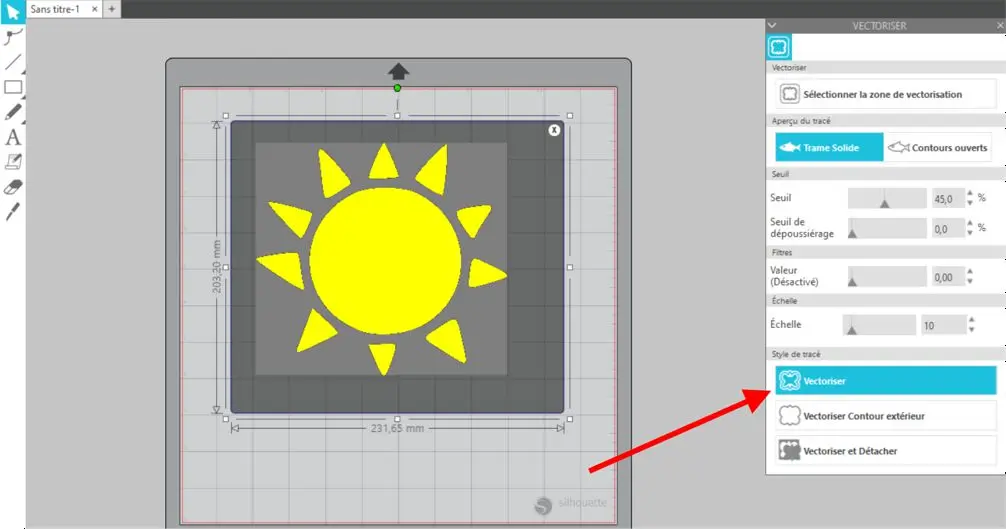
Ziehe mit gedrückter linker Maustaste einen Rahmen um dein gesamtes Logo, klicke dann auf „Vektorisieren“, und schon ist es geschafft!
Das Ganze ist sehr einfach, allerdings ist die Vektorisierung nicht immer perfekt: Silhouette Studio übersieht dabei manchmal bestimmte Details des Motivs. Für eine genauere Vektorisierung kannst du dir den Beitrag über das Vektorisieren mit der Software Inkscape ansehen.
Schritt 2: Einstellungen für das Motiv
Sobald dein Logo vektorisiert ist, kannst du in der Software Silhouette Studio verschiedene Einstellungen vornehmen. Ändere zuerst die Größe des Logos und platziere es an der richtigen Stelle im Rahmen (meist oben links, wo geschnitten wird).
Wenn du mit Flexfolie arbeitest, musst du dein Logo unbedingt „spiegeln“, denn die Maschine schneidet die Logos „seitenverkehrt“. Du musst sie also umdrehen, damit sie beim Aufbügeln richtig herum erscheinen.
Klicke dazu mit der rechten Maustaste auf dein Logo und dann auf „Horizontal spiegeln“, und schon dreht sich das Logo einmal um sich selbst!
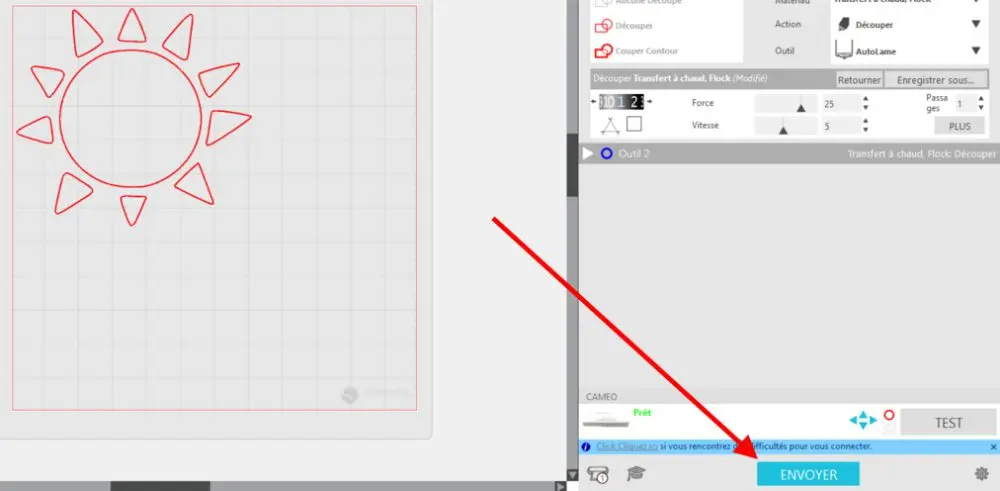
Jetzt kannst du oben rechts auf dem Bildschirm auf „SENDEN“ klicken, um zum nächsten Schritt zu gelangen ➡️
Silhouette Studio ist eine umfangreiche Software mit jeder Menge Extras für die Logo-Gestaltung. Wir haben uns die wichtigsten angesehen, aber du kannst natürlich gern alle ausprobieren!
Jetzt kommen wir zum Wichtigsten: den Schneideeinstellungen!
Schritt 3: Schneideeinstellungen
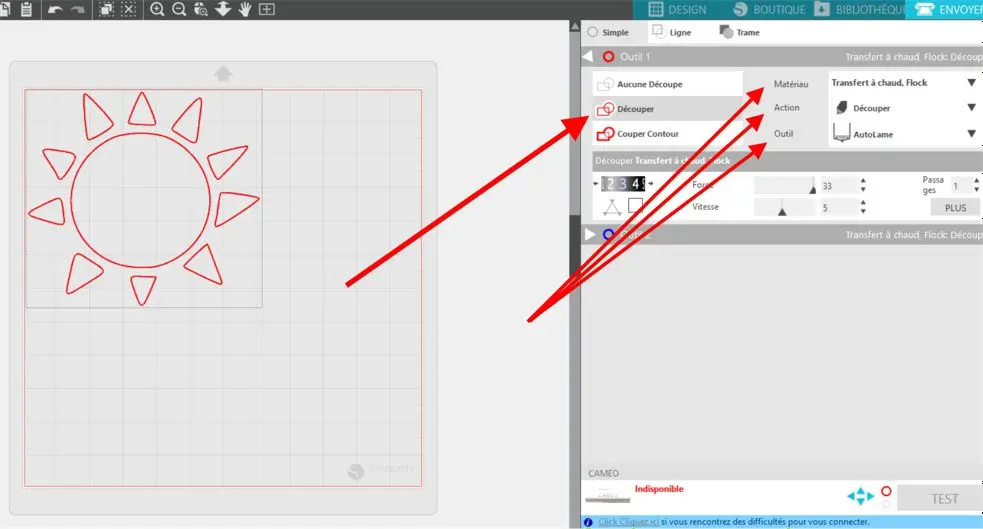
Die Felder Material, Aktion und Werkzeug
- Klicke im ersten weißen Feld auf „Schneiden“.
- Wähle im Reiter „Material“ die Option „Thermotransfer, Flock“
- Klicke im Reiter „Aktion“ auf „Schneiden“
- Klicke im Reiter „Werkzeug“ auf „Autoblade“ (die gängigste Variante), wenn du ein automatisches Messer hast, andernfalls auf „Silhouette-Messer“.
Messertiefe, Kraft und Geschwindigkeit
Die Flexfolien auf dem Markt haben alle mehr oder weniger unterschiedliche Messereinstellungen.
Deshalb nehmen wir in dieser Anleitung die Schneideeinstellungen der Standard-Flexfolie der Marke Transfer Paper als Beispiel.
Das schwarze Rädchen steht für die Messertiefe. Wir empfehlen, beim Schneiden von Flexfolie immer eine Messertiefe von 1 (maximal 2) einzustellen, denn eine zu große Messertiefe kann deine Schneidematte beschädigen und im schlimmsten Fall sogar deine Maschine…
Die Kraft entspricht dem Druck, mit dem das Messer auf das Material drückt, damit es besser schneidet. Kurz gesagt: Wenn sich deine Flexfolie nicht richtig schneiden lässt, erhöhst du besser die Kraft als die Messertiefe.
Wie oben erwähnt, hängt die richtige Kraft von der jeweiligen Flexfolie ab. Für die Standard-Flexfolie aus unserem Sortiment empfehlen wir dir eine Kraft zwischen 21 und 25.
Wenn du Flexfolie einer anderen Marke schneidest (nicht schlimm, niemand ist perfekt 🙄), empfehlen wir dir, mit einer Kraft von 25 zu beginnen. Schneidet das Messer durch die Trägerfolie der Flexfolie, verringere die Kraft ⬇️. Schneidet es nicht tief genug, erhöhe die Kraft ⬆️.
Bei der Schneidegeschwindigkeit empfehlen wir, die Standardeinstellung (5) beizubehalten.
Und schließlich musst du dein Logo nicht mehrmals schneiden, wenn die Einstellungen stimmen. Wir empfehlen dir daher, die Anzahl der Durchgänge auf 1 zu lassen.
Endlich sind alle Einstellungen fertig 🤩. Jetzt kannst du dein Motiv schneiden, indem du auf „SENDEN“ klickst!
Wir hoffen, dass dir diese Anleitung weitergeholfen hat. Das Schneiden von Motiven mit Silhouette Studio wird für dich bald ein Kinderspiel sein!
Du möchtest unsere Standard-Flexfolie ausprobieren? Dann warte nicht länger und klicke auf den Link unten!😉
Ich will die Standard-Flexfolie!
Produktvorteile:
✔️ Leicht zu schneiden und zu entgittern
✔️ Kompatibel mit allen Silhouette-Schneideplottern
✔️ Schnell aufgebracht (15 Sekunden)
✔️ Bestes Preis-Leistungs-Verhältnis


Kommentare
Noch keine Kommentare. Schreib den ersten und teile deine Erfahrung.
Kommentar schreiben