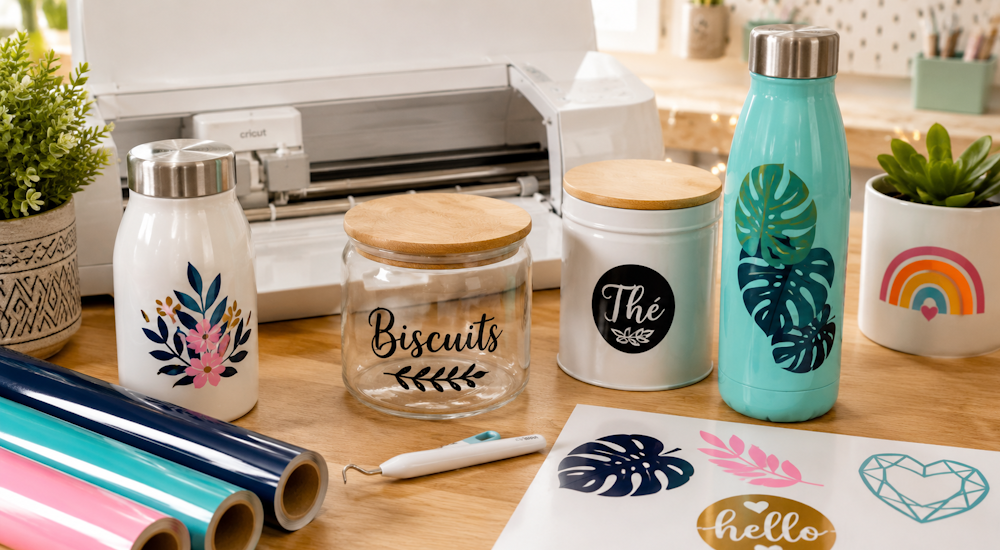
Wenn du selbstklebende Vinylfolie mit einem Plotter schneidest, ist es wichtig, von Anfang an die richtigen Einstellungen zu wählen, damit der Schnitt optimal gelingt. 👍
Wir zeigen dir also, wie du deine selbstklebende Vinylfolie mit der Software Silhouette Studio schneidest und so ein strahlend schönes Logo bekommst! ✨
Für diese Anleitung kannst du jede Silhouette-Maschine (Cameo oder Portrait) verwenden, denn sie funktionieren alle mit der Software Silhouette Studio.
1 - Lade dein Motiv in die Software
Als Erstes laden wir das Motiv, das wir schneiden möchten, in die Software. Falls dir noch eine Idee für ein Motiv aus Vinylfolie fehlt, kannst du unser Set mit 50 kostenlosen Dateien für die Silhouette Cameo herunterladen. 😉
Klicke in Silhouette Studio auf „Datei“ und dann auf „Öffnen“ und suche dein Motiv. Wenn du es gefunden hast, doppelklickst du darauf und wartest kurz, denn die Software braucht ein paar Sekunden, um dein Bild zu laden.
a - Die Vektorisierung
Sobald das Bild geladen ist, müssen wir es „vektorisieren“. Dadurch bekommt dein Motiv eine perfekte Auflösung, damit der Schnitt der Vinylfolie präzise wird. 🧐
Dafür hast du 2 Möglichkeiten:
1️⃣ Die erste und einfachste: Klicke auf das Schmetterlingssymbol rechts auf deinem Bildschirm. Klicke dann auf „Vektorisierungsbereich auswählen“, halte die linke Maustaste gedrückt und ziehe einen Rahmen um das gesamte Motiv, das du ausgewählt hast.
Die Software markiert dein Logo gelb. Klicke jetzt auf „Vektorisieren“.
Lösche das ursprüngliche Logo. Jetzt siehst du ein zweites Motiv mit roten Linien: Das ist das vektorisierte Logo.
2️⃣ Bei der zweiten Methode vektorisierst du mit der kostenlosen Software Inkscape.
Wenn du die Software heruntergeladen hast, fügst du dort das Logo ein, das du vektorisieren möchtest.
Klicke es an und dann auf „Pfad“ ➡️ „Bitmap nachzeichnen“ ➡️ „Bestätigen“
Damit hast du in Inkscape ein vektorisiertes Logo erstellt! Jetzt musst du es aber noch in Silhouette Studio laden:
Lösche das ursprüngliche, nicht vektorisierte Logo, klicke auf „Datei“ und dann auf „Speichern unter“ und wähle den Dateityp DXF.
Klicke auf „Speichern“ und dann auf „Bestätigen“, um den Vorgang abzuschließen.
Geh zurück in Silhouette Studio, klicke wieder auf „Datei“ ➡️ „Öffnen“ und doppelklicke auf die DXF-Datei.
Und schon ist es geschafft! 🏆
Die Größe des Bildes änderst du, indem du es mit gedrückter linker Maustaste an den Ecken ziehst.
Hinweis: Wenn du selbstklebende Vinylfolie schneiden möchtest, musst du dein Motiv nicht spiegeln. Bei Motiven aus Flexfolie ist das dagegen nötig.
b - Die Schneideeinstellungen für selbstklebende Vinylfolie
Jetzt geht es um die Schneideeinstellungen. Klicke dafür oben rechts auf dem Bildschirm auf den blauen Button „SENDEN“.
Klicke im kleinen Feld oben rechts mit den roten Motiven auf die Option „Schneiden“.
Auf der rechten Seite siehst du 3 rechteckige Felder mit 3 kleinen Pfeilen.
Im ersten Feld wählst du das Material „Glanzvinyl“ oder „Mattvinyl“ aus.
Im zweiten Feld wählst du „Schneiden“ und im dritten „Auto-Messer“.
Die Einstellungen für den Schnitt von Vinylfolie können je nach verwendeter Folie variieren. Wir empfehlen dir aber, die Messertiefe immer auf Stufe 1 zu lassen. Klicke dafür auf das schwarze Rädchen, bis Stufe 1 eingestellt ist. ☝️
Stelle die Kraft auf 14 und die Geschwindigkeit auf 5.
Wenn der Schnitt deiner selbstklebenden Vinylfolie nicht überzeugt, gibt es zwei Möglichkeiten:
Das Messer deines Plotters hat die Folie nicht tief genug geschnitten. ➡️ Dann musst du die Kraft erhöhen.
Das Messer deines Plotters hat das Trägerpapier der Folie durchgeschnitten. ➡️ Dann musst du die Kraft verringern.
Wenn alle Einstellungen stimmen, legen wir die selbstklebende Vinylfolie in die Maschine ein, damit der Schnitt perfekt wird:
2 - Bereite die Vinylfolie zum Schneiden vor
Nimm deine Schneidematte und lege die selbstklebende Vinylfolie darauf: Die Trägerseite der Folie klebt auf der Matte, die farbige Seite zeigt nach oben.
Wenn deine Schneidematte nicht besonders stark klebt, empfehlen wir dir, die Ränder zusätzlich mit Malerkrepp zu fixieren.
Geh zu deinem Plotter und senke das Rädchen ab, um die Metallleiste zu öffnen.
Lege die Matte zwischen die beiden weißen Kunststoffringe (einer links und einer rechts an der Maschine).
Schließe das graue Rädchen wieder.
Die Schneidematte sollte jetzt von selbst in der Maschine halten.
Drücke jetzt an deiner Maschine auf den Pfeil nach oben (Laden) und klicke in Silhouette Studio auf den Button „Senden“ (wenn deine Maschine mit der Software verbunden ist, startet der Schnitt!)
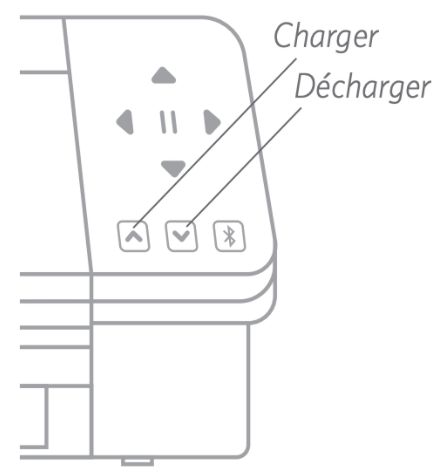
Sobald die Maschine läuft, wartest du je nach Größe des Logos ein paar Sekunden oder Minuten (je größer das Logo, desto länger dauert der Schnitt).
Wenn der Schnitt der selbstklebenden Vinylfolie fertig ist, entlädst du die Maschine mit einem Klick auf „Entladen“.
Die Maschine gibt die Schneidematte dann aus.
Jetzt kommt das Entgittern: Dabei entfernst du die überschüssige Vinylfolie rund um dein Logo.
3 - Das Entgittern
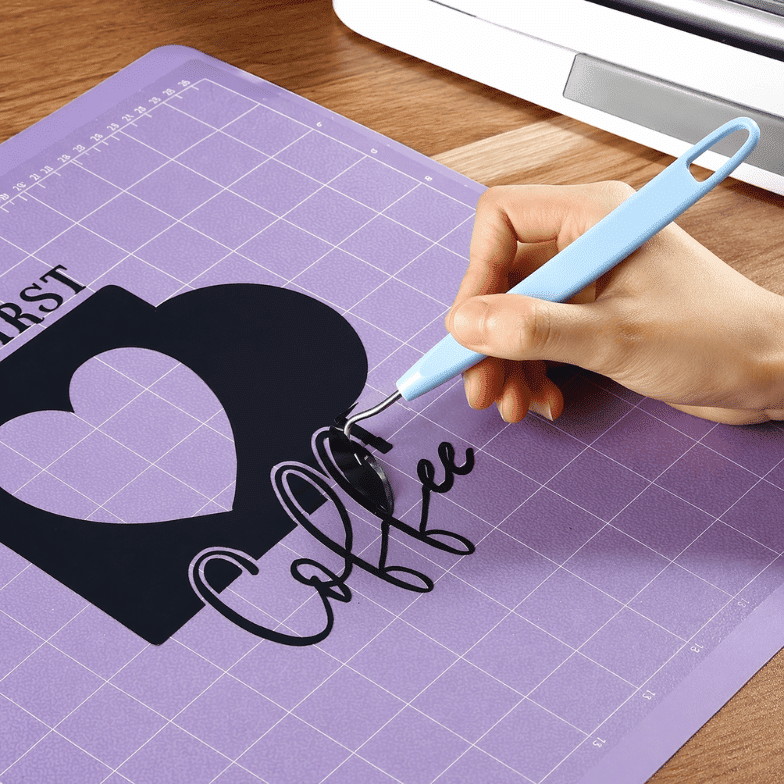
Für diesen Schritt brauchst du unbedingt einen Entgitterhaken, um nach dem Schneiden der Vinylfolie alle überschüssigen Reste zu entfernen. Die Teile außerhalb deines Motivs sollten sich ganz leicht und ohne Kraftaufwand lösen lassen.
Geh beim Entgittern behutsam vor, damit du nicht versehentlich einen Teil deines Logos mit abziehst.
Wenn du fertig bist, siehst du dein Logo in voller Pracht auf seinem Trägerpapier.
4 - Das Aufbringen
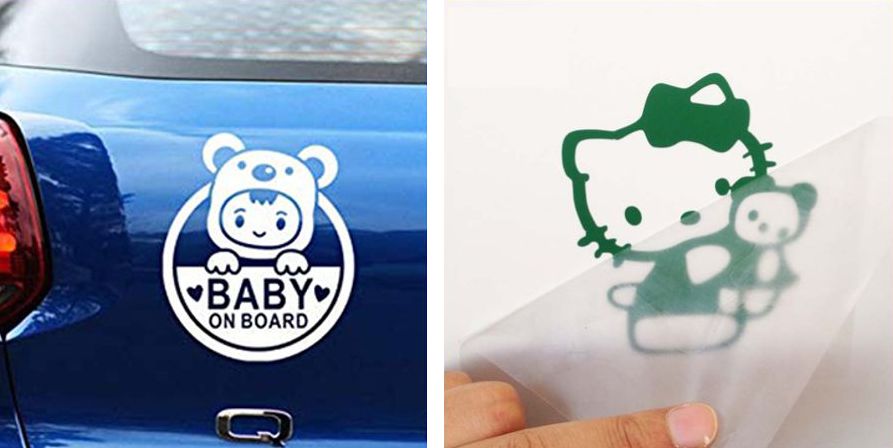
Um deine selbstklebende Vinylfolie auf eine Oberfläche aufzubringen, brauchst du Transferfolie und eine Rakel.
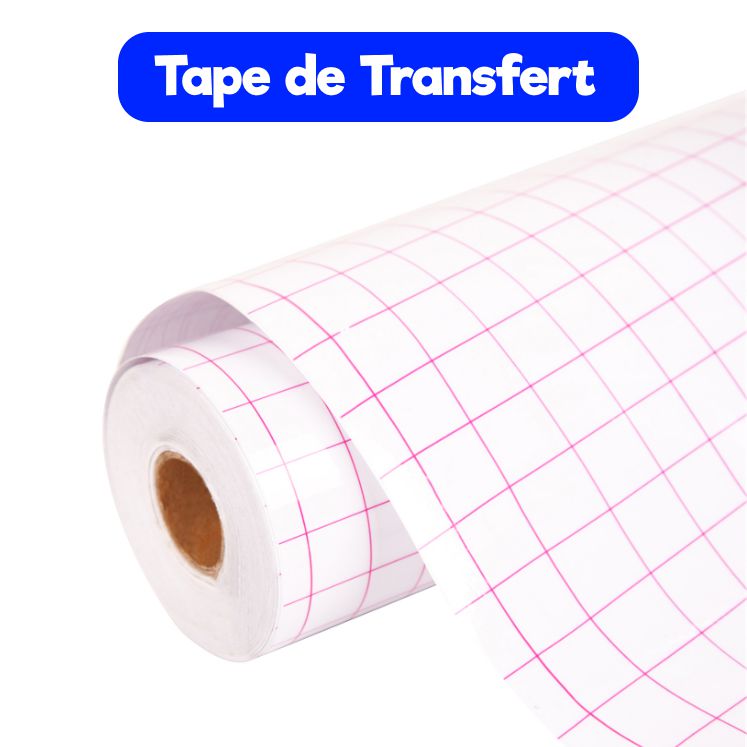
Die Transferfolie ist unverzichtbar, um dein Logo auf die gewünschte Oberfläche zu übertragen.
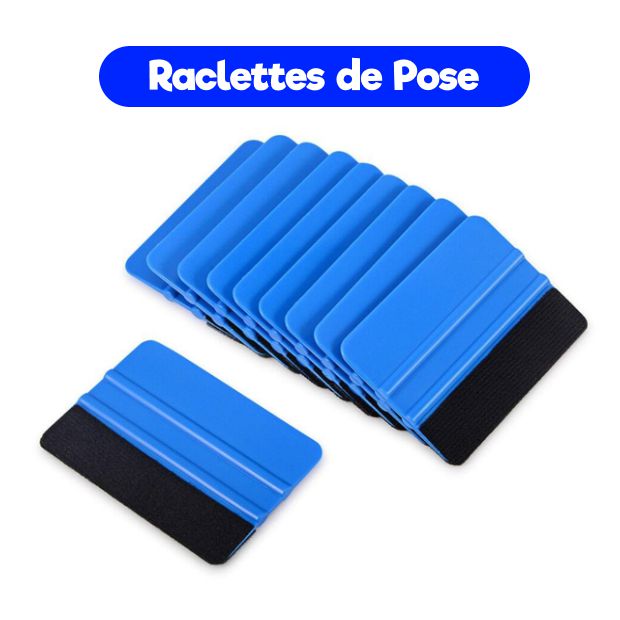
Mit der Rakel bringst du dein Logo aus selbstklebender Vinylfolie richtig auf der gewünschten Oberfläche an, damit es perfekt haftet.
So bringst du die Vinylfolie auf:
1️⃣ Schneide ein Stück Transferfolie in der Größe deines Logos zu, ziehe die Schutzfolie von der Transferfolie ab und lege sie auf dein Logo. Die Transferfolie muss dein Vinylmotiv komplett bedecken.
Hier ist ein Erklärvideo, wie du deine Transferfolie richtig auf die Vinylfolie aufbringst.
2️⃣ Streiche eventuelle Luftblasen mit deiner Rakel heraus.
3️⃣ Ziehe die Transferfolie langsam ab: Dein Logo sollte daran haften bleiben und sich vollständig mit übertragen lassen.
4️⃣ Bringe das Logo auf der gewünschten Oberfläche an (zum Beispiel an einem Fenster, einer Wand, einem Rahmen ...) und streiche zum Schluss noch einmal 10 Sekunden lang mit der Rakel darüber.
5️⃣ Ziehe die Transferfolie vorsichtig ab, und das Logo bleibt perfekt auf der Oberfläche kleben. Und schon ist es geschafft! ✔️
Damit ist deine Vinylfolie fertig geschnitten und aufgebracht. Am Anfang ist das Ganze noch ziemlich mühsam, aber du wirst sehen: Mit etwas Übung wird es für dich zum Kinderspiel! 🤩
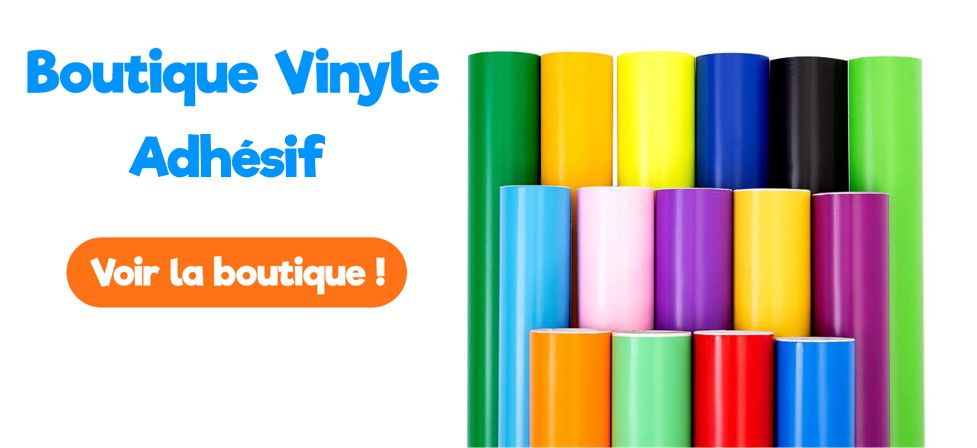
Um unsere selbstklebenden Vinylfolien zu bestellen und hochwertige Motive zu gestalten, kannst du in unseren Shop für selbstklebende Vinylfolie eintauchen 🏊♂️. Wir bieten 3 verschiedene Folienarten an: matte, glänzende und Glitzer-Vinylfolie für einzigartige Kreationen!
Außerdem bekommst du bei uns karierte Transferfolie und Rakel, damit du deine Motive personalisieren und auf jeden gewünschten Untergrund übertragen kannst. 😉
Jetzt hast du alle Werkzeuge und Tipps, die du zum Schneiden von Vinylfolie brauchst. Also nichts wie los! 💪
Kommentare
Noch keine Kommentare. Schreib den ersten und teile deine Erfahrung.
Kommentar schreiben