
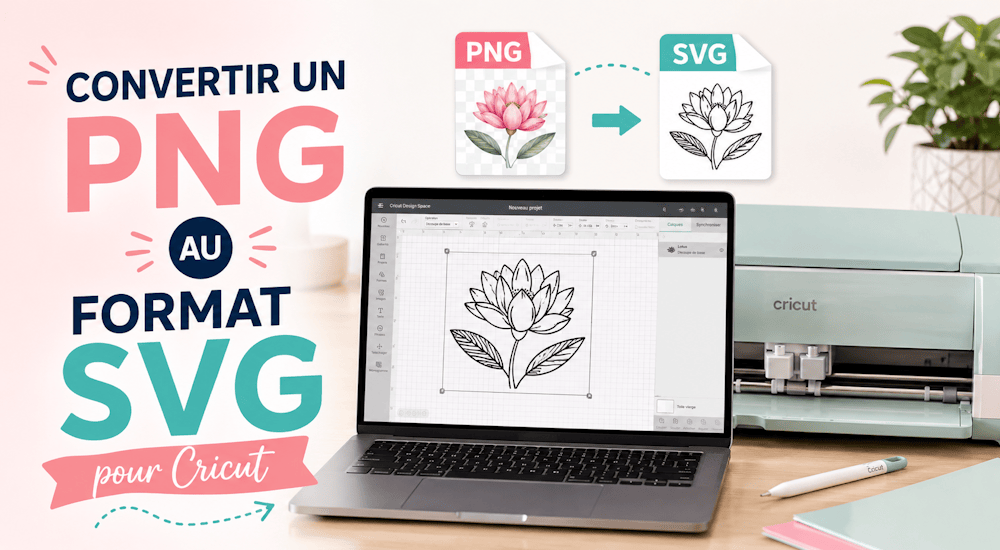
Eine Vektorgrafik (SVG) ist ein bestimmtes Bildformat. Anders als andere Formate setzen SVG-Dateien die Bilder, die du siehst, nicht aus einzelnen Pixeln zusammen. Stattdessen nutzen sie sogenannte „Vektordaten“.
Wenn du das SVG-Format mit deiner Cricut oder einem anderen Schneideplotter nutzt, bekommst du Bilder, die sich in jede beliebige Auflösung skalieren lassen, ohne dass das Motiv an Qualität verliert. In diesem Artikel erklären wir dir, was eine SVG-Datei ist und wie du sie in der Software Cricut Design Space verwendest! 😉
Was ist eine SVG-Datei?

Die Buchstaben SVG stehen für „Scalable Vector Graphics“. Eine SVG-Datei ist ein Vektorgrafikformat und im Grunde nichts anderes als eine einfache Textdatei, die Linien, Kurven, Formen, Farben und Text beschreibt. Programme wie Cricut Design Space und Silhouette Studio können SVG-Dateien problemlos lesen, was sie extrem vielseitig macht.
Wie gesagt, basiert eine SVG-Datei nicht auf Pixeln wie ein Foto (JPG oder PNG). Dadurch ist sie unabhängig von der Auflösung und beliebig skalierbar. Sobald du eine Datei im SVG-Format in eine Software importiert hast, kannst du die Größe des Logos also nach Belieben ändern, ohne dass die Qualität leidet. Das ist wie Magie ✨! Ein SVG-Bild bleibt klar und scharf, ganz egal, wie groß es ist.
Ein weiterer Vorteil von SVG-Schneidedateien: Sie brauchen wenig Speicherplatz. Damit eignen sie sich perfekt zum Herunterladen und lassen sich leicht digital speichern. 👍 All das macht das SVG-Format ideal für Schneidedateien, die du mit deinem Plotter verwenden möchtest.
SVG-Dateien in Cricut Design Space hochladen
So lädst du eine SVG-Datei in die Cricut-Software hoch. Das geht einfach und schnell und macht Spaß!
Außerdem erfährst du, wie du das Logo auf die richtige Größe für dein Projekt bringst.
Öffne die Software Cricut Design Space.
Klicke auf „Neues Projekt“.
Klicke dann unten links auf „Hochladen“.
Klicke im Bereich zum Hochladen auf „Bild hochladen“.
Suche den Ordner, in dem du deine SVG-Bilddatei gespeichert hast.
Wenn du deine Datei gefunden hast, klicke darauf, um sie in Design Space zu öffnen.
Jetzt musst du nur noch auf „Zur Leinwand hinzufügen“ klicken, um sie für deine nächsten Kreationen zu verwenden! 🤩
Wie wandelst du ein PNG-Bild für Cricut in eine SVG-Datei um?
Jetzt weißt du, wie du eine SVG-Datei in Cricut Design Space hochlädst.
Als Nächstes zeigen wir dir, wie du ein PNG-Bild ins SVG-Format umwandelst. In dieser Anleitung nutzen wir die Vektorisierungsfunktion von Inkscape, um das Logo von PNG in SVG umzuwandeln. Du kannst aber auch andere Programme verwenden, etwa Illustrator oder Photoshop…
Schauen wir uns also an, wie du mit Inkscape SVG-Dateien für Cricut erstellst!
Wie erstellst du in Inkscape SVG-Dateien für Cricut?
Ein Vorteil von Inkscape: Das Standardformat dieser Software ist bereits SVG! Deshalb eignet sie sich hervorragend, um Bilder ins SVG-Format umzuwandeln und mit Vektorgrafiken zu arbeiten. ✅
Für diese Aufgabe verwenden wir das Saturn-Logo, das du auf dem Bild unten siehst.
Natürlich kannst du auch jedes andere Projekt nehmen, an dem du gerade arbeitest.
Schritt 1️⃣
Öffne die PNG-Datei deiner Wahl in Inkscape.
Schritt 2️⃣
Jetzt vektorisierst du das Logo, damit im Motiv keine Pixel mehr zu sehen sind. Klicke dazu auf „Pfad“ ➡ „Bitmap nachzeichnen“ ➡ Klicke mit der linken Maustaste auf dein Logo ➡ Klicke zum Schluss auf „OK“.
Es erscheint ein neues Logo. Lösche das alte Logo im PNG-Format und behalte das neue. Du wirst sehen, dass es keine Pixel mehr hat, weil es vektorisiert wurde.
Schritt 3️⃣
Nun speichern wir das Motiv auf dem Computer. Klicke auf „Datei“ ➡ Benenne die Datei um ➡ Wähle das SVG-Format ➡ Klicke auf „Speichern“.
Jetzt hast du eine SVG-Datei, die du in Cricut Design Space importieren kannst.
Wie wandelst du eine PNG-Datei mit Design Space für Cricut in eine SVG-Datei um?
Die zweite Möglichkeit, ein JPG oder PNG für die Cricut in eine SVG-Datei umzuwandeln, besteht darin, das direkt in der Software Cricut Design Space zu erledigen. Die Software ist kostenlos, und du brauchst sie ohnehin, um deine Cricut zu nutzen.
Schritt 1️⃣
Klicke in Design Space in der linken Seitenleiste auf „Hochladen“. Lade dann dein JPG- oder PNG-Bild hoch. Wähle die Bildkomplexität anhand der Beschreibungen aus, die Cricut dir anzeigt.
Schritt 2️⃣
Danach landest du auf einem Bearbeitungsbildschirm mit drei Werkzeugen: dem Zauberradierer, einem Radierpinsel und einem Zuschneidewerkzeug. Nimm wie auf dem Bild unten den Zauberradierer und klicke auf den weißen Hintergrund deines Logos, um ihn zu entfernen. 🖱️
Klicke nacheinander auf jeden weißen Hintergrundbereich deines Logos, den du entfernen möchtest.
Schritt 3️⃣
Wenn du alle unerwünschten Bildteile entfernt hast, kannst du auswählen, ob du ein Bild zum Drucken und Schneiden oder ein reines Schneidebild möchtest.
Das Bild zum Drucken und Schneiden behält seine Farben, weil du es zuerst druckst und dann schneidest. Das ist zum Beispiel praktisch, wenn du mit deiner Cricut Aufkleber machst.
Für unser Projekt brauchen wir aber das Schneidebild. Keine Sorge, dass die Farbe verloren geht: Das Motiv lässt sich in mehrere Teile aufteilen, damit du mit dem Plotter jede Farbe richtig schneiden kannst. Klicke auf die Option „Schneiden“ und dann auf „Speichern“! Die neue Datei erscheint auf der Design-Space-Leinwand. ✔️
Die Vektorisierung ist abgeschlossen!
Fazit
Wie du siehst, gibt es viele Möglichkeiten, SVG-Dateien für Cricut zu erstellen. Diese Methoden haben zahlreiche Vorteile, zum Beispiel lassen sich die Bilder frei skalieren 🖼️. Außerdem sind deine Dateien dadurch besser mit Cricut Design Space kompatibel, und das Schneiden des Motivs geht schneller. ✂️
Du hast Lust auf dein nächstes Cricut-Projekt und suchst SVG-Bilder für Cricut? Dann wirf doch einen Blick in unseren Shop für Vektormotive.
Wir bieten eine große Auswahl an Vektorgrafiken, die du zu einem sehr günstigen Preis herunterladen kannst. Probiere ruhig so viele aus, wie du möchtest! Das Tolle daran: Alle Grafiken gibt es im SVG-, PNG- und DXF-Format (3 Formate, die mit Cricut und Silhouette Caméo kompatibel sind). 😀
Du brauchst neue Motive für dein nächstes DIY-Projekt oder einfach etwas Inspiration? Dann schau mal rein! ⤵️


Kommentare
Noch keine Kommentare. Schreib den ersten und teile deine Erfahrung.
Kommentar schreiben